Programs
Manage Loxone Config project files (programs) for the device
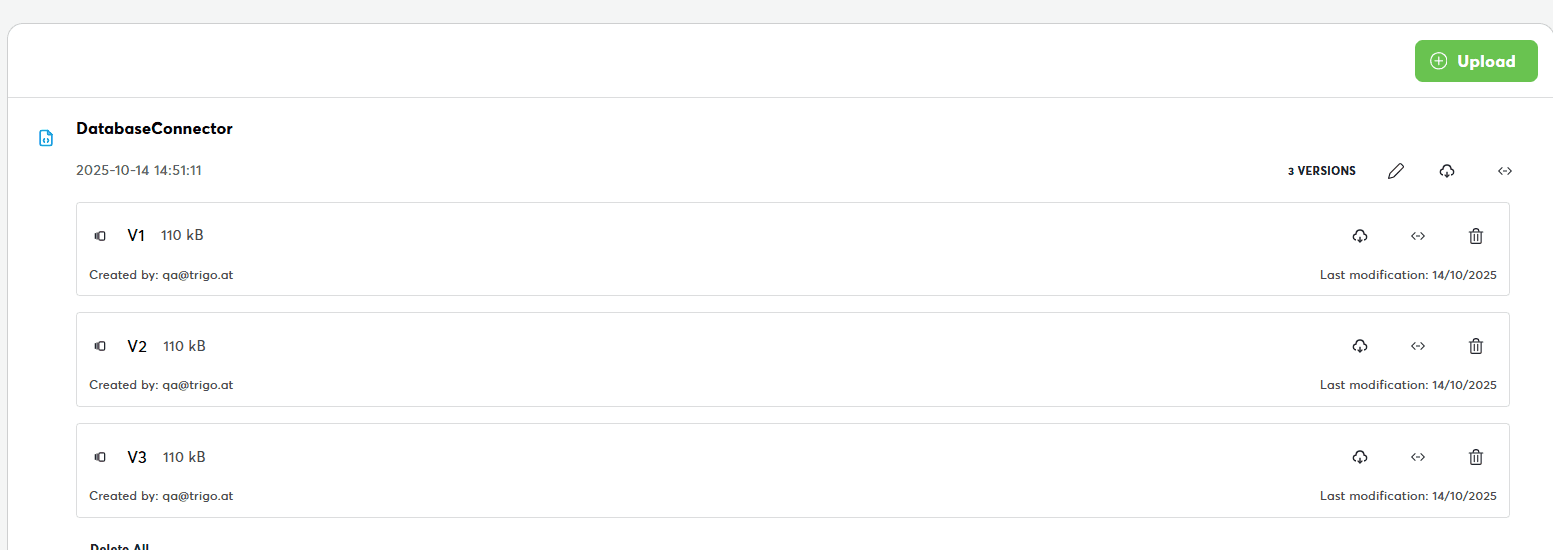
The Programs tab enables Loxone Config project file management for your Miniserver. This is your central hub for storing, versioning, and managing configuration projects used in device development and deployment.
What this delivers:
- Program file storage and versioning
- Version comparison and management
- Direct integration with Loxone Config
- Program sharing and collaboration
- Configuration backup and restore
What You See
Program List:
- Config projects organized by name
- Multiple versions per program
- Latest version highlighted
- Quick actions for each version
Program Information
Each program shows:
- Program name: Identifier
- Versions: Count of saved versions (V1, V2, V3...)
- Latest upload: Date and time
- File size: Size of .loxone file
- Actions: Edit, download, open in Loxone Config
Version Management
Version numbering:
- V1: First uploaded version
- V2, V3, ...: Subsequent versions
- Latest version shown first
- Older versions collapsed
Version details:
- Upload timestamp
- File size
- Uploaded by (user)
- Version notes (if added)
Creating/Uploading Programs
Method 1: Upload from Computer
- Click "Upload Program" button
- Select .loxone file from dialog
- Enter program details:
- Name: Program identifier
- Description: Optional notes
- Version notes: What changed
- Click "Upload"
- File appears in list
Method 2: Save from Loxone Config
- Open Loxone Config
- Connect to Miniserver
- Make your changes
- Save to Exosphere:
- File → Save to Cloud
- Select Exosphere workspace
- Choose this device
- Program appears in Exosphere automatically
Program Actions
Edit Program Details
Button: Edit icon
Allows:
- Rename program
- Update description
- Change version notes
- Modify visibility
Download Program
Button: Download icon
Effect:
- Downloads .loxone file
- Can be opened in Loxone Config
- Useful for offline work or backup
Open in Loxone Config
Button: Loxone Config icon
Requirements:
- Loxone Config installed
- URL protocol handler enabled
Effect:
- Launches Loxone Config
- Opens project directly
- Connects to Miniserver
Delete Version
Button: Delete icon
Effect: Removes specific version
Delete All Versions
Button: Delete all (bulk action)
Effect: Removes entire program with all versions
Permissions
| Action | Required Permission |
|---|---|
| View programs | Read device |
| Upload programs | Edit device |
| Download programs | Read device |
| Delete programs | Edit device |
| Restore to device | Admin on Miniserver |
Troubleshooting
Need help?
Having issues with programs? See Miniserver Overview Troubleshooting for solutions to upload issues, syncing problems, and Loxone Config integration.
Related Documentation
- Miniserver Details - Central dashboard
- Program Files - Complete guide to managing Loxone configuration files
- Backups - Device backup management
- Documents - File storage and management