License Management
License plans, features, and license code activation for PRO and ENTERPRISE Workspaces
License Plans Overview
Available Plans
Exosphere offers three license plans to match different usage requirements:
- TRIAL: Trial license for 90 days, activated automatically after first connection to Exosphere
- PRO: Advanced features for small to medium teams with extended storage and analytics
- ENTERPRISE: Complete feature set for large organizations with unlimited capacity
Purchasing Licenses
Licenses must be purchased through the Loxone Shop. After purchase, you receive a license code to activate in Exosphere. Available Exosphere Licenses: - Exosphere Miniserver Pro (10 years)
License Features Comparison
Core Features
| Feature | PRO | ENTERPRISE |
|---|---|---|
| Backup Storage/Miniserver | 100 MB | 1 GB |
| Data Retention | 3 years | 5 years |
| Max Data/Miniserver | 1 GB | Unlimited |
| Building Blocks | Unlimited | Unlimited |
| Resource Sharing | ❌ | ✅ |
| Auto-Refresh | ❌ | ✅ |
| Webhook Reports | ❌ | ✅ |
| Hierarchical Permissions | ❌ | ✅ |
| SMS Notifications | ✅ | ✅ |
View complete feature comparison →
Activating License Codes
Prerequisites
- License code from Loxone Shop
- Workspace Owner or Administrator role
- License code matches your workspace plan
License Compatibility
License codes must match your workspace license plan. Organization workspaces require matching PRO or ENTERPRISE codes.
Step-by-Step Activation
-
Purchase License
- Go to Loxone Shop
- Select desired license plan (PRO or ENTERPRISE)
- Choose number of Miniserver licenses
- Complete purchase
Direct Links:
-
Access License Management
- Log in to Exosphere
- Navigate to "Settings" → "Subscription"
- View current license status
- Click "Add License"
-
Enter License Code
- Paste or type license code from email
- Format:
EXO-PROM-XXXXXXXX(example) - Click "Activate"
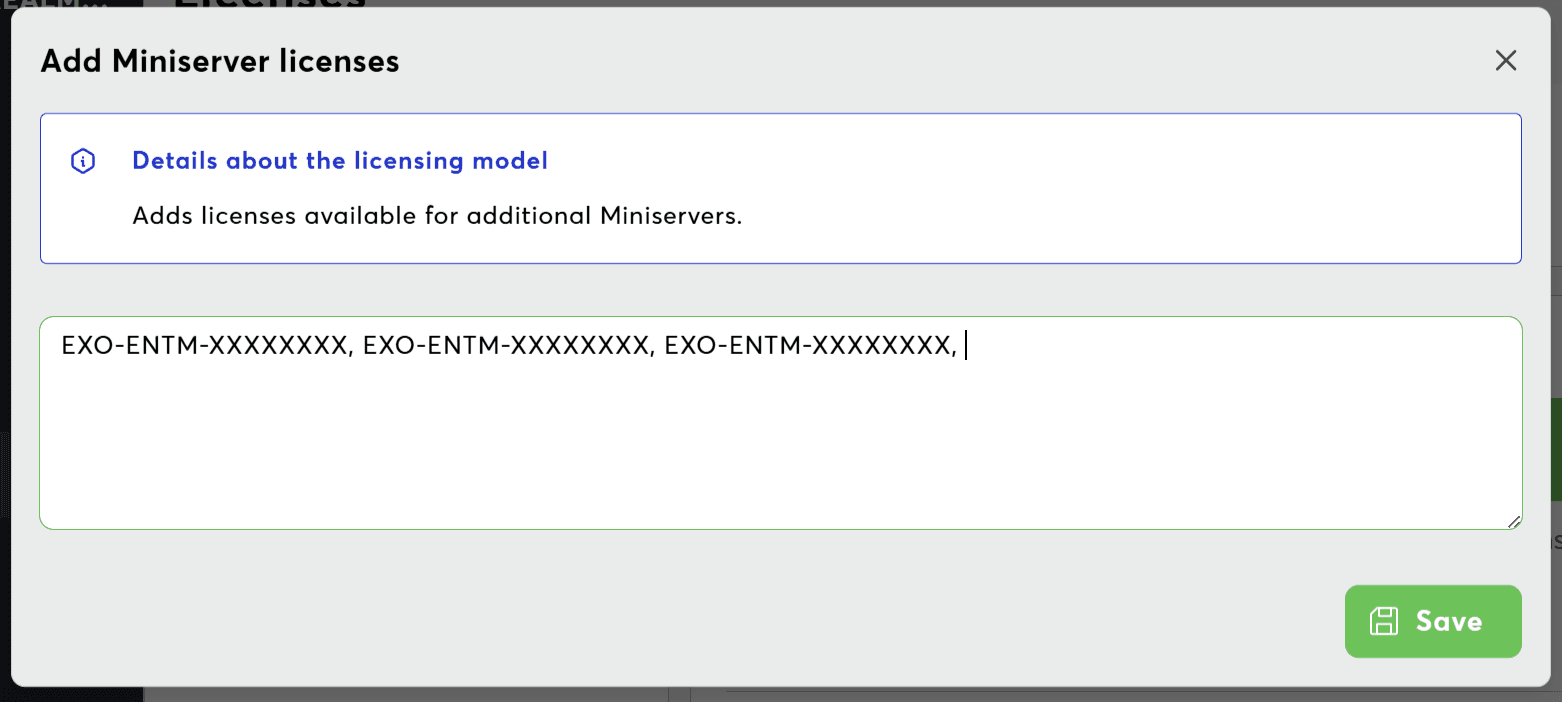
Multiple Licenses at Once
You can enter multiple license codes at the same time by separating them
with commas. This is useful when adding licenses for multiple Miniservers in
bulk. Example: EXO-PROM-XXXXXXXX, EXO-PROM-YYYYYYYY, EXO-ENTM-ZZZZZZZZ
- Confirm Activation
- System validates the license code
License Status Monitoring
Understanding License Status
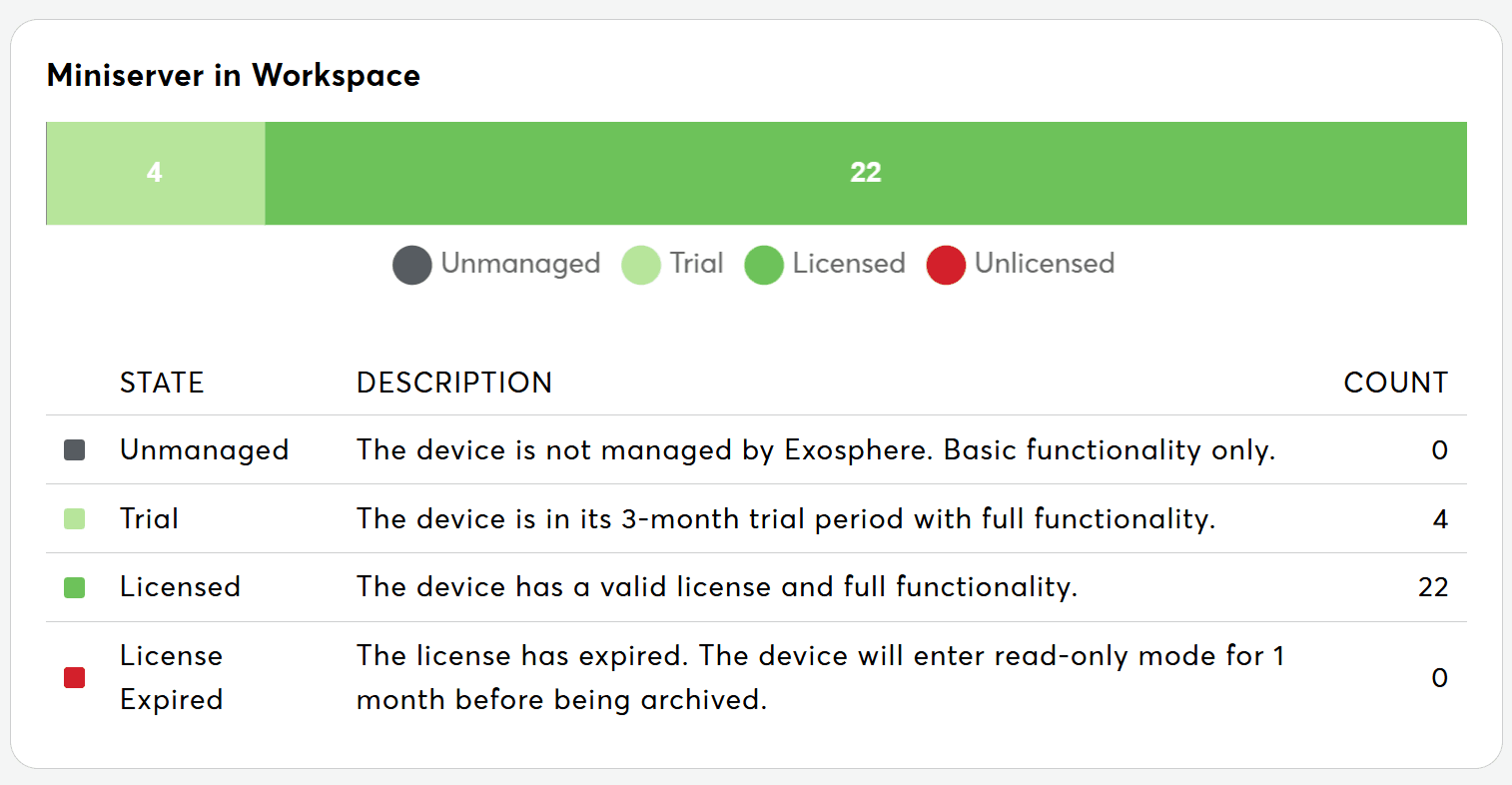
Your devices can have different license statuses:
Unmanaged:
- Miniserver not managed by Exosphere
- No license required yet
- Device connected but not enrolled
Trial:
- 3-month trial period active
- Full features available
Licensed:
- Valid license active
- All features available
Unlicensed:
- License expired or missing
- 30-day grace period after expiration
- Device will be deactivated after grace period
Checking License Status
- Navigate to "Settings" → "Subscription"
- View "License Overview" section
- Check device status breakdown:
- Total Miniservers
- Licensed devices
- Trial devices
- Unlicensed devices
- Review expiration dates
License Expiration
After license expiration, there is a 30-day grace period. After that, affected Miniservers stop sending data to Exosphere.
License Assignment to Miniservers
How Licenses are Assigned
When you add a new license to your workspace, it is automatically assigned to the oldest Miniserver registered in your workspace.
Assignment Logic:
- The license is assigned to the Miniserver with the oldest registration date
- Assignment happens automatically after activation
- When adding multiple new licenses, they are assigned sequentially to the next oldest Miniservers
- Assignment is independent of the device's current license status
Automatic Assignment
You cannot manually control license assignment. The system assigns licenses based on the Miniserver registration date to ensure fair distribution.
Example:
- Miniserver A: Added on 01.01.2024
- Miniserver B: Added on 15.03.2024
- Miniserver C: Added on 20.06.2024
When you activate a new PRO license, it is automatically assigned to Miniserver A (oldest).
Renewing Licenses
When to Renew
- Grace period active (30 days after expiration)
- Want to prevent service interruption
Renewal Process
-
Purchase Renewal License
- Go to Loxone Shop
- Purchase same license plan (see available licenses)
- Receive new license code
License Links:
-
Enter Renewal Code
- Navigate to "Settings" → "Subscription"
- Click "Add License"
- Enter new license code
- Click "Activate"
-
Automatic Extension
- System extends oldest licenses first
- License duration added to existing licenses
- No interruption in service
- Confirmation displayed
Expected result: License renewed, devices remain active, service continues
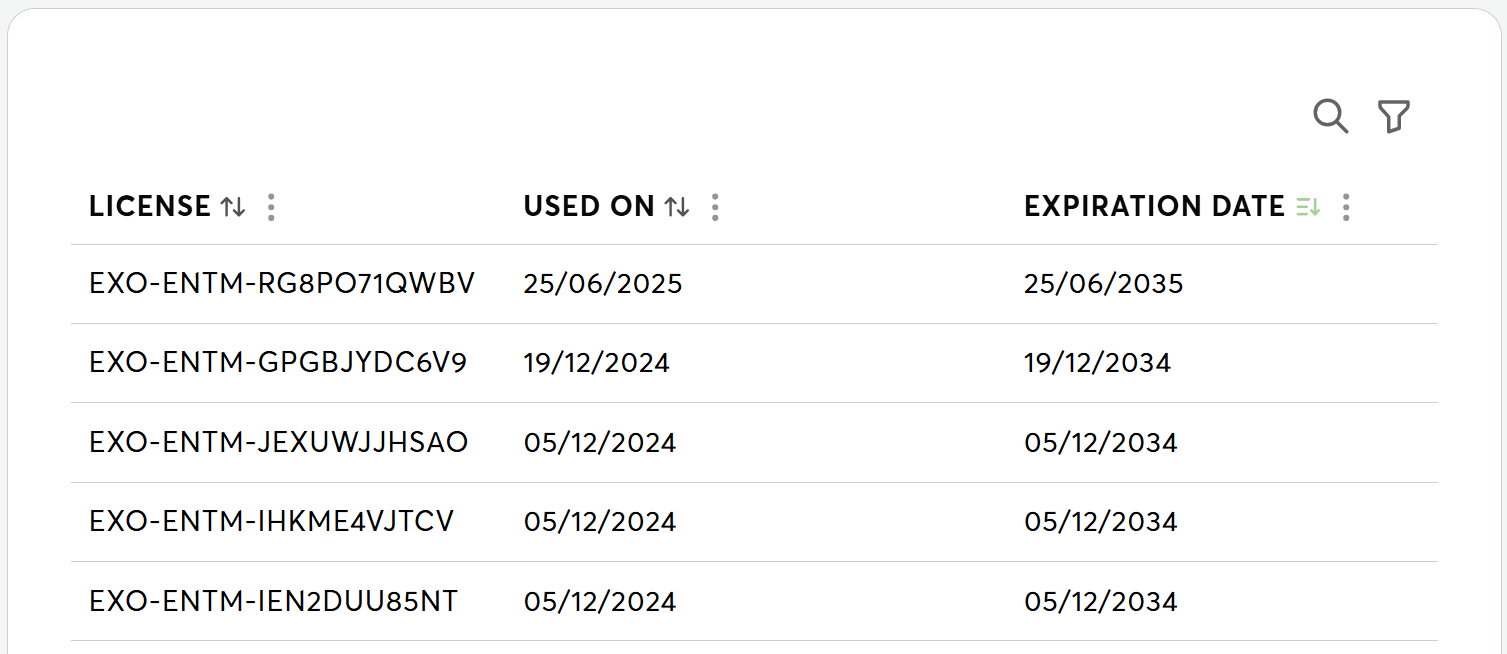
Renewal Order
When entering multiple license codes, the system automatically applies them to the oldest (soonest to expire) licenses first.
Moving Between License Plans
How Plan Changes Work
You cannot upgrade or downgrade licenses yourself in Exosphere. To change plans:
From PRO to ENTERPRISE:
- Purchase ENTERPRISE licenses in Loxone Shop:
- Contact Loxone Support to migrate the Workspace
Expiry calculation when upgrading
When PRO licenses are converted to an ENTERPRISE license during migration, the expiry date of the new ENTERPRISE license is set to the midpoint between the expiry dates of the converted PRO licenses. Example: PRO licenses expiring on 2026-01-01 and 2026-03-01 → new ENTERPRISE license expires around 2026-02-01.
FAQ
Move licenses to a new workspace
- You cannot move licenses yourself in the UI.
- Contact Loxone Support and request a license move to the target workspace.
Upgrade from PRO to Enterprise
- Purchase ENTERPRISE licenses in the Loxone Shop and contact Support to migrate the workspace.
- During conversion, the new ENTERPRISE license expiry is the midpoint between the expiry dates of the converted PRO licenses.
Related Documentation
- Workspace Setup - Create and configure workspace
- Team Management - Add and manage team members
- User Permissions & Roles - Role-based access control
- Troubleshooting - License-specific issues