Workspace Settings
Configure workspace-level settings including provisioning codes and defaults
Workspace Settings let you configure workspace-wide defaults that apply to all team members and devices. These settings are managed by Administrators and affect how devices are paired and displayed.
Provisioning Code
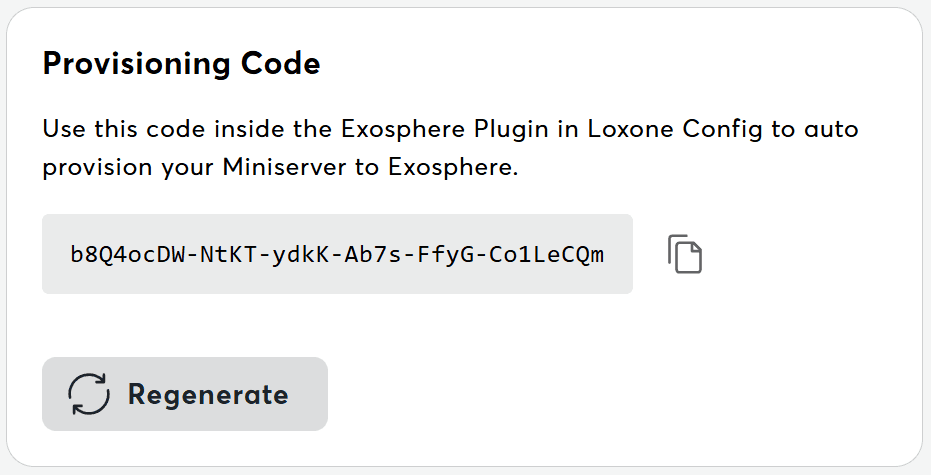
The provisioning code is used to pair Miniservers with your Exosphere workspace. Each workspace has a unique alphanumeric code that authorizes devices to connect.
Viewing the Code
- Navigate to Settings → Workspace → Details
- The code is displayed in a copy-friendly format
- Click the copy icon to copy to clipboard
Regenerating the Code
Regenerating the provisioning code invalidates the old code immediately. Existing Miniservers remain connected, but any new pairing attempts with the old code will fail.
- Administrator only — only workspace Administrators can regenerate
- Click "Regenerate" to create a new code instantly
- The old code becomes invalid
- All existing paired Miniservers remain connected and unaffected
When to Regenerate
- Security concerns — Code was shared with unauthorized parties
- Organizational changes — Team restructuring or handover
- Routine rotation — Periodic security hygiene
Element Provisioning Codes
Enterprise Feature
Element-level provisioning codes are available in Enterprise workspaces only.
Enterprise workspaces can also create provisioning codes for individual structure elements. This allows devices to be paired directly into a specific location in the workspace hierarchy, rather than at the workspace root. Element codes support a revocation history of up to 5 previous codes.
See Structure Panel → Element Provisioning Codes for details.
Device Map Configuration
Control whether the device map is displayed by default on the devices list page.
| Setting | Description |
|---|---|
| Show device map by default | When enabled, all users see the Miniserver location map when they first open the devices list |
This setting is a workspace-level default. Individual users can still toggle the map visibility for themselves — their personal preference takes priority over this setting.
Related Documentation
- Adding Devices – Use the provisioning code to pair Miniservers
- Structure Panel – Element provisioning codes for hierarchical pairing
- Settings Overview – All settings categories
- Workspace Issues – Troubleshooting settings problems