Export Center
Export database and chart data as Excel or CSV files, manage reusable templates, and schedule automated reports
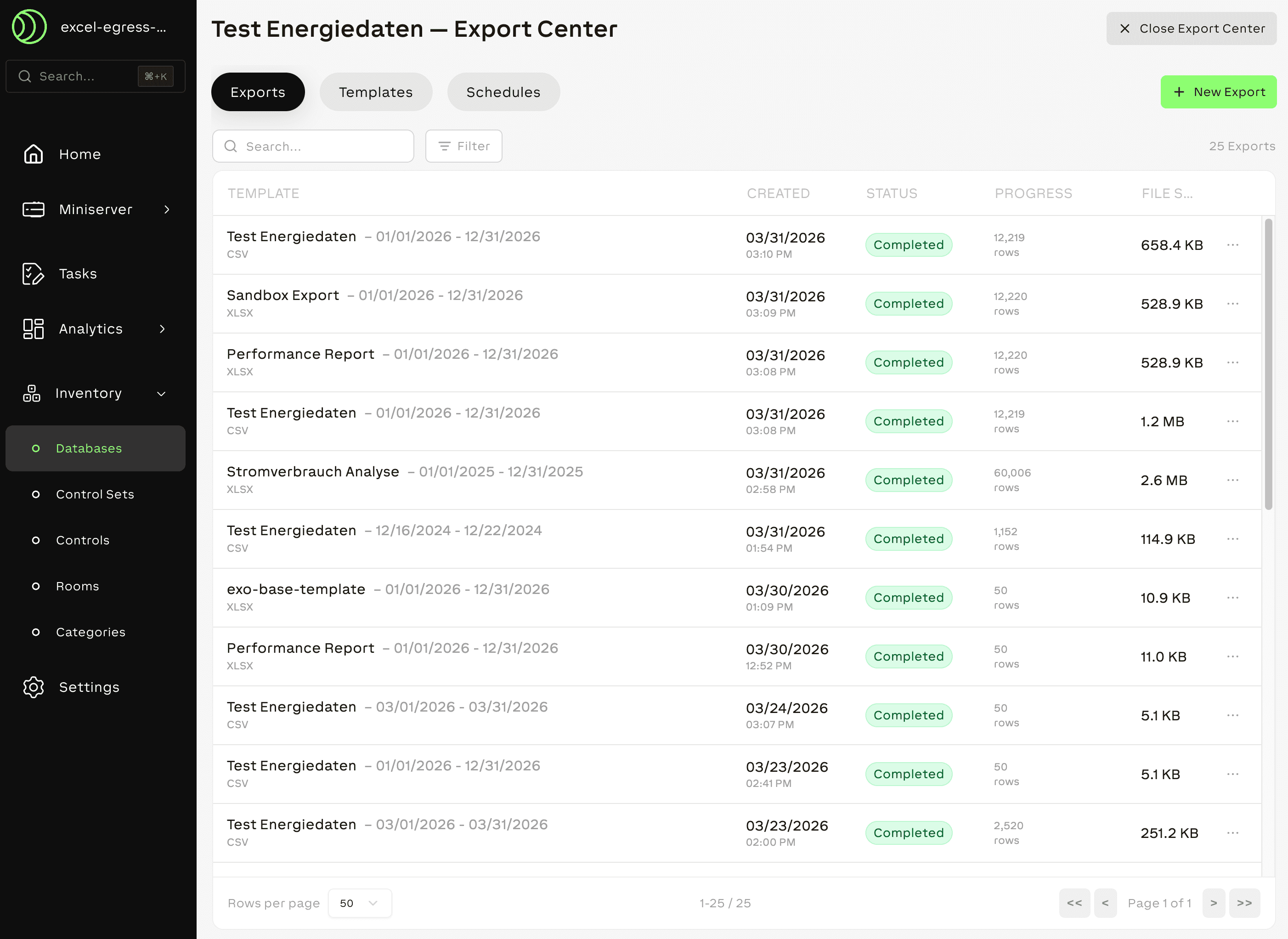
The Export Center lets you export data from databases and charts in Excel (XLSX) or CSV format. You can run one-off exports, create reusable Excel templates with custom formatting, and set up scheduled reports that deliver data automatically via email or webhook.
The Export Center is organized into three tabs:
| Tab | Purpose |
|---|---|
| Exports | Create and manage export jobs |
| Templates | Upload and manage reusable Excel templates |
| Schedules | Set up automated, recurring exports (databases only) |
Opening the Export Center
- Navigate to Observe → Value History or Inventory → Databases
- Select the database or chart you want to export
- Click "Export Center" in the toolbar
Exports
The Exports tab lists all export jobs — queued, in progress, completed, failed, or canceled.
Creating an Export
- Click "New Export"
- Choose format — Select Excel (XLSX) or CSV
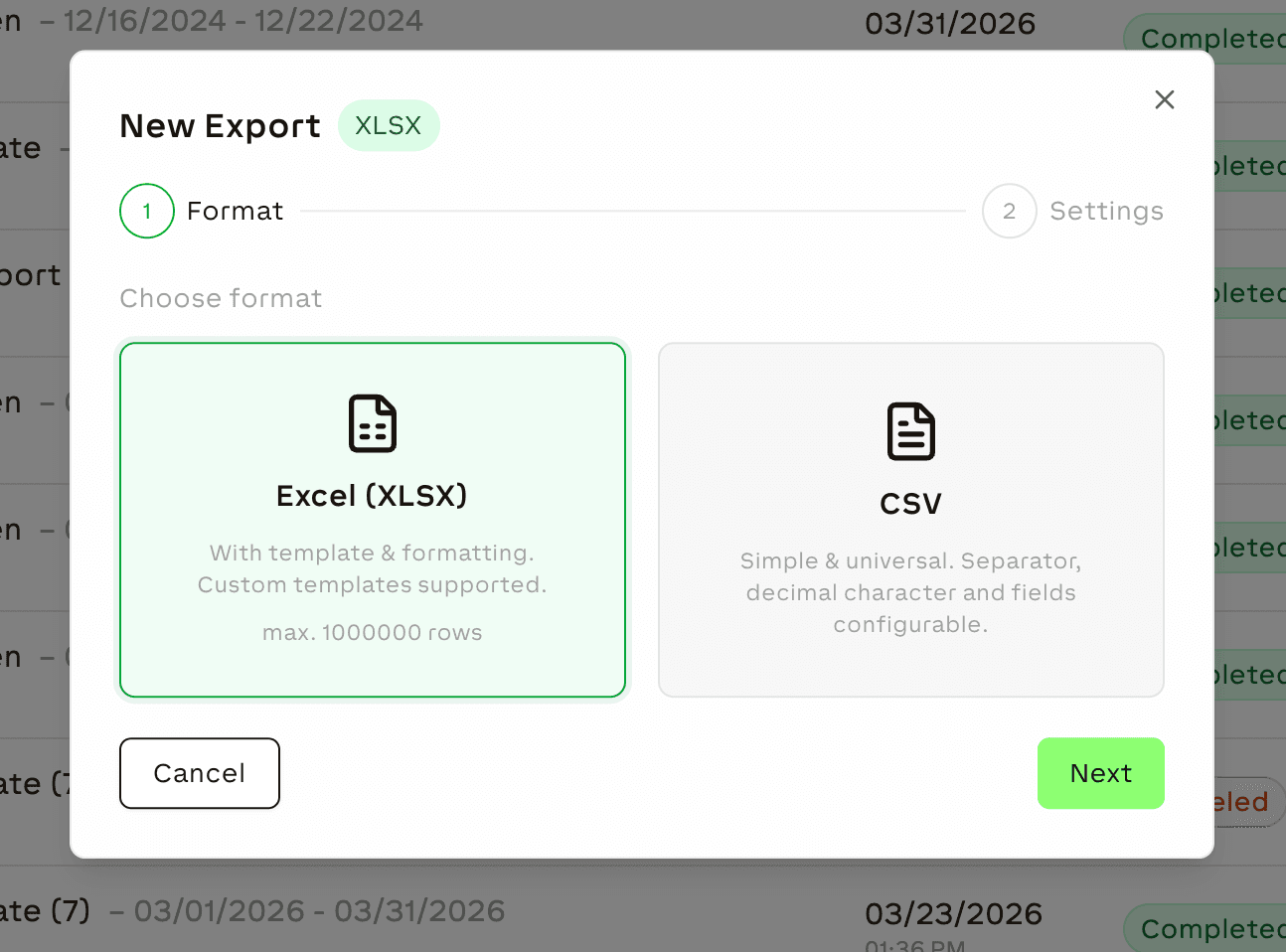
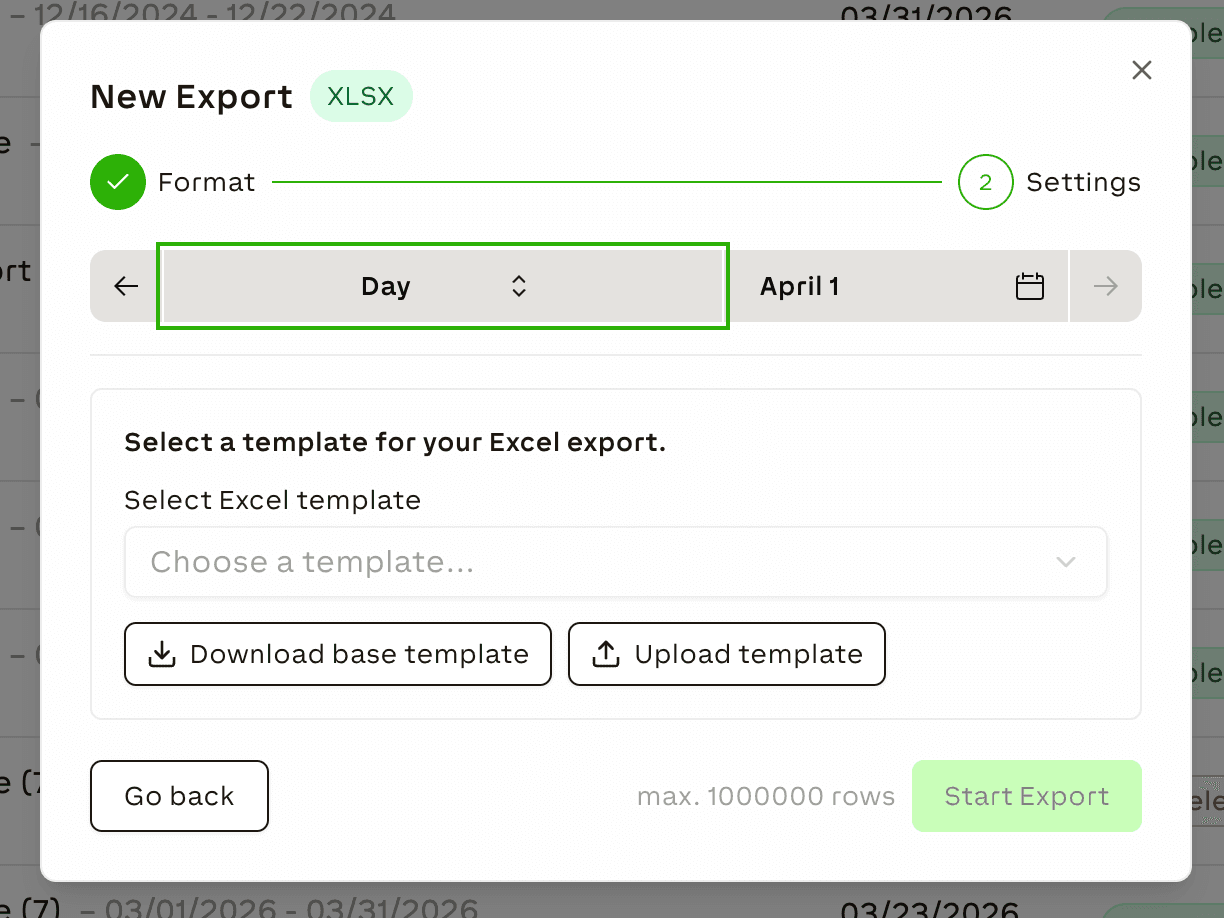
- Configure settings — Depending on the format:
- XLSX: Select a template to apply formatting and layout, and choose the time granularity and date
- CSV: Choose separator (comma, semicolon, or tab), decimal separator (dot or comma), and text identifier settings
- Select fields — Check which columns to include, drag to reorder, and choose a date format for timestamp fields
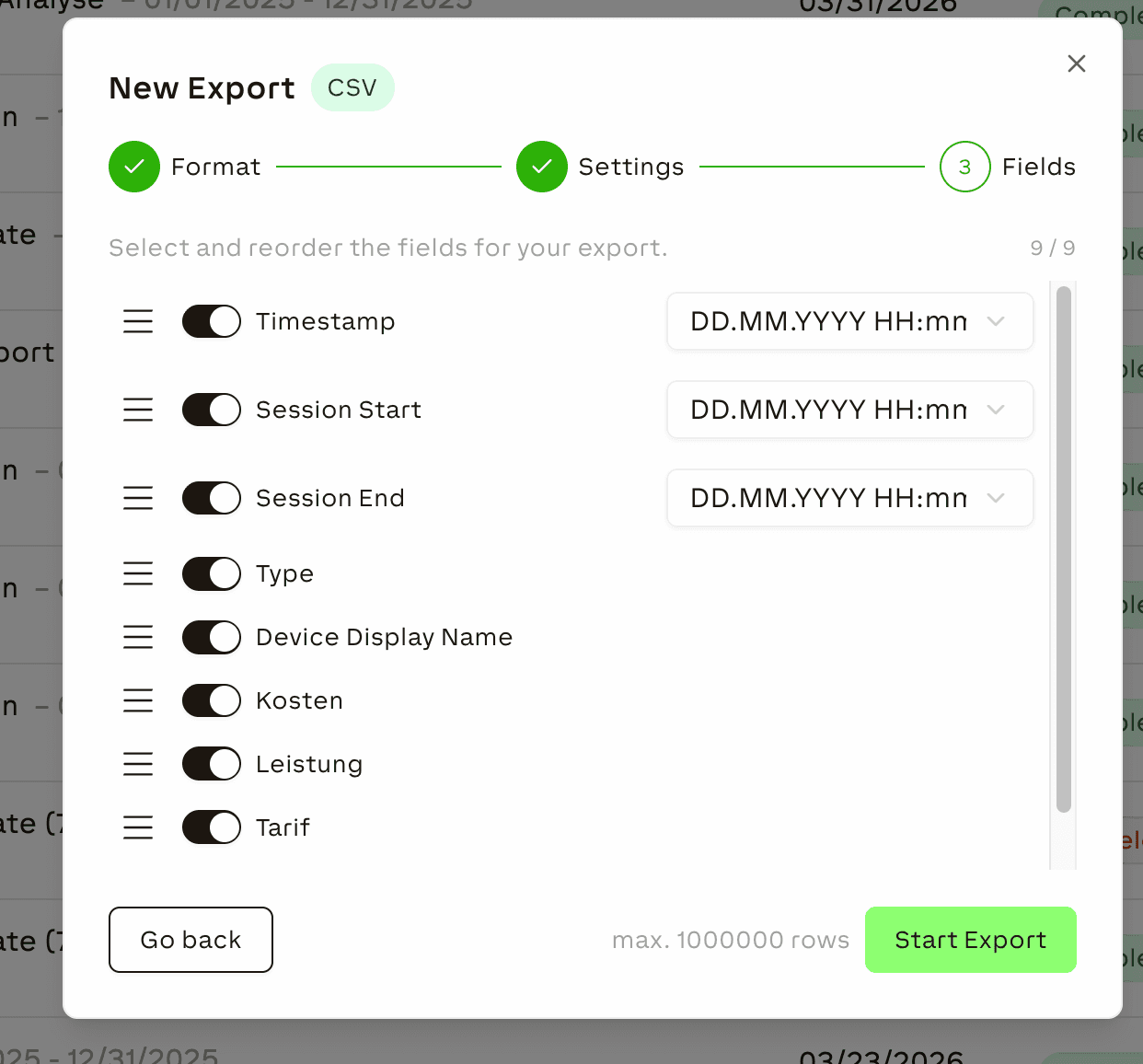
- Confirm — The export job is created and appears in the Exports tab
Exports are capped at 1,000,000 rows. If your data exceeds this limit, only the first 1,000,000 rows are exported.
Available Date Formats
When selecting fields, you can choose the date format for timestamp columns:
| Format | Example |
|---|---|
| DD.MM.YYYY HH:mm:ss | 01.04.2026 14:30:00 |
| YYYY-MM-DD HH:mm:ss | 2026-04-01 14:30:00 |
| MM/DD/YYYY HH:mm:ss | 04/01/2026 14:30:00 |
| ISO 8601 | 2026-04-01T14:30:00.000Z |
Export Status
| Status | Meaning |
|---|---|
| Queued | Export is waiting to be processed |
| Processing | Export is being generated |
| Completed | Export is ready for download |
| Failed | Export encountered an error |
| Canceled | Export was canceled by a user |
Managing Exports
- Download — Available for completed exports
- Cancel — Available for queued or in-progress exports
- Delete — Available for completed, failed, or canceled exports
Use the filter bar to narrow the list by status, format (XLSX or CSV), or tags.
Templates
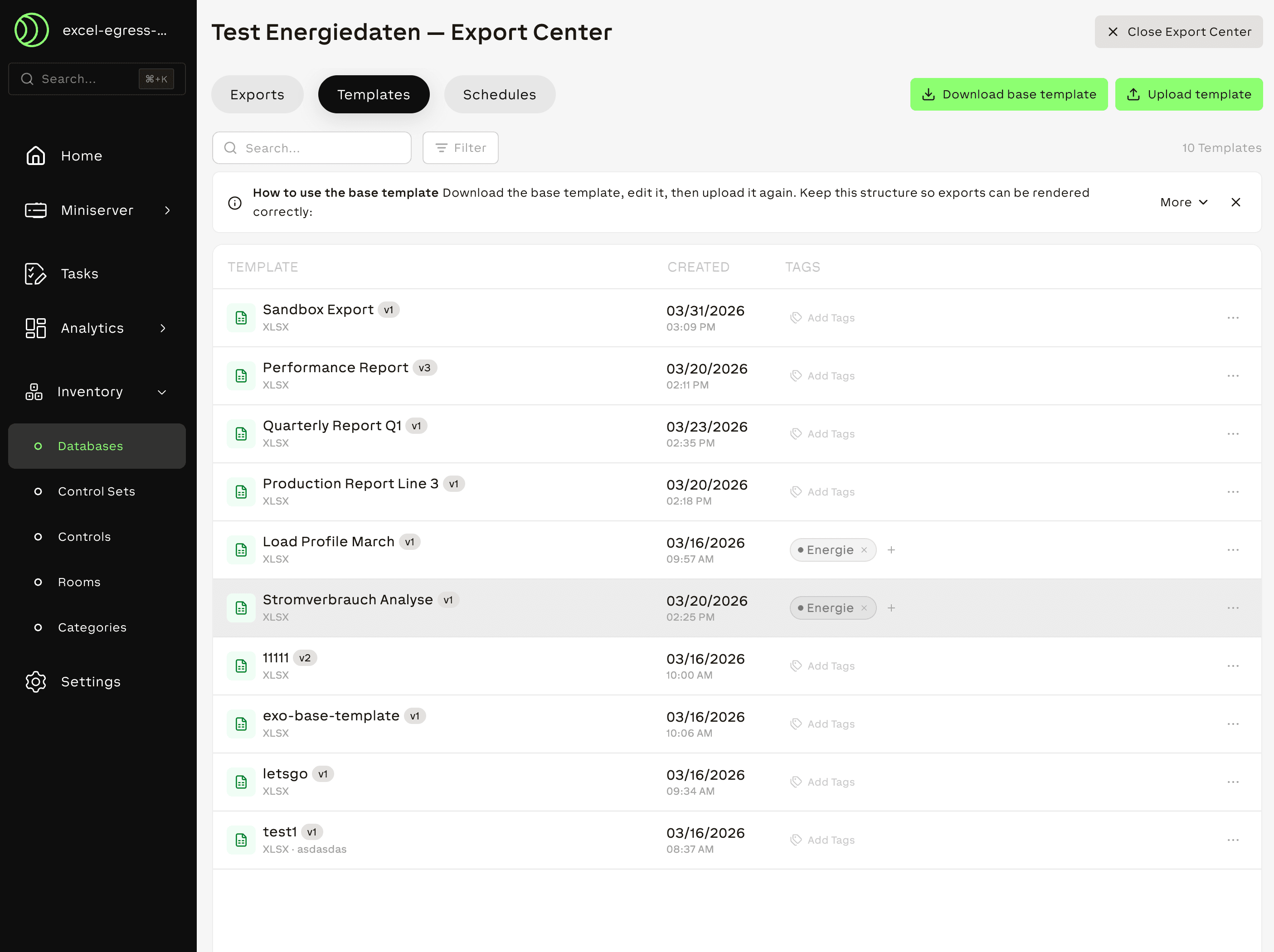
Templates are reusable Excel files that define the layout, formatting, and structure of your exports. When you export data as XLSX, the system fills the template's data sheet with your exported data, preserving any custom sheets, formulas, and charts you added.
How Templates Work
Every template contains a special ExoData sheet:
- Row 1 contains the column headers
- Row 2 contains internal column IDs (do not modify)
- Row 3 onward is filled with your data during export
You can add additional sheets with custom formatting, formulas, and charts that reference the ExoData sheet. The export engine fills the data and your custom sheets update automatically.
Do not rename or delete the ExoData sheet. Do not modify the header row or column ID row. Your custom layout belongs on separate sheets that reference ExoData.
Downloading a Base Template
- Open the Templates tab
- Click "Download Base Template"
- An Excel file with the ExoData sheet structure is downloaded
Use this file as your starting point. Add custom sheets, charts, and formulas, then upload it back as a template.
Uploading a Template
- Open the Templates tab
- Click "Upload Template"
- Select a
.xlsxfile from your computer - Enter a name and optional description
- Click Save
The template is now available for selection when creating XLSX exports.
Managing Templates
| Action | Description |
|---|---|
| Edit Details | Change the template name or description |
| New Version | Upload an updated version of the template |
| Duplicate | Create a copy of the template |
| Add Tags | Organize templates with tags for filtering |
| Delete | Remove the template |
Uploading a new version does not overwrite previous versions. Each version is retained and can be referenced independently.
Schedules
Schedules automate recurring exports for databases. On a defined interval, the system generates an export and delivers it via email or webhook.
Schedules are only available for database exports, not for chart exports.
Schedule Types
| Type | Delivery | Details |
|---|---|---|
| CSV or XLSX attachment | Sent to one or more email recipients | |
| Webhook | HTTP POST | Sends data as JSON to an external URL (Enterprise only) |
Creating a Schedule
- Open the Schedules tab
- Click "New Schedule"
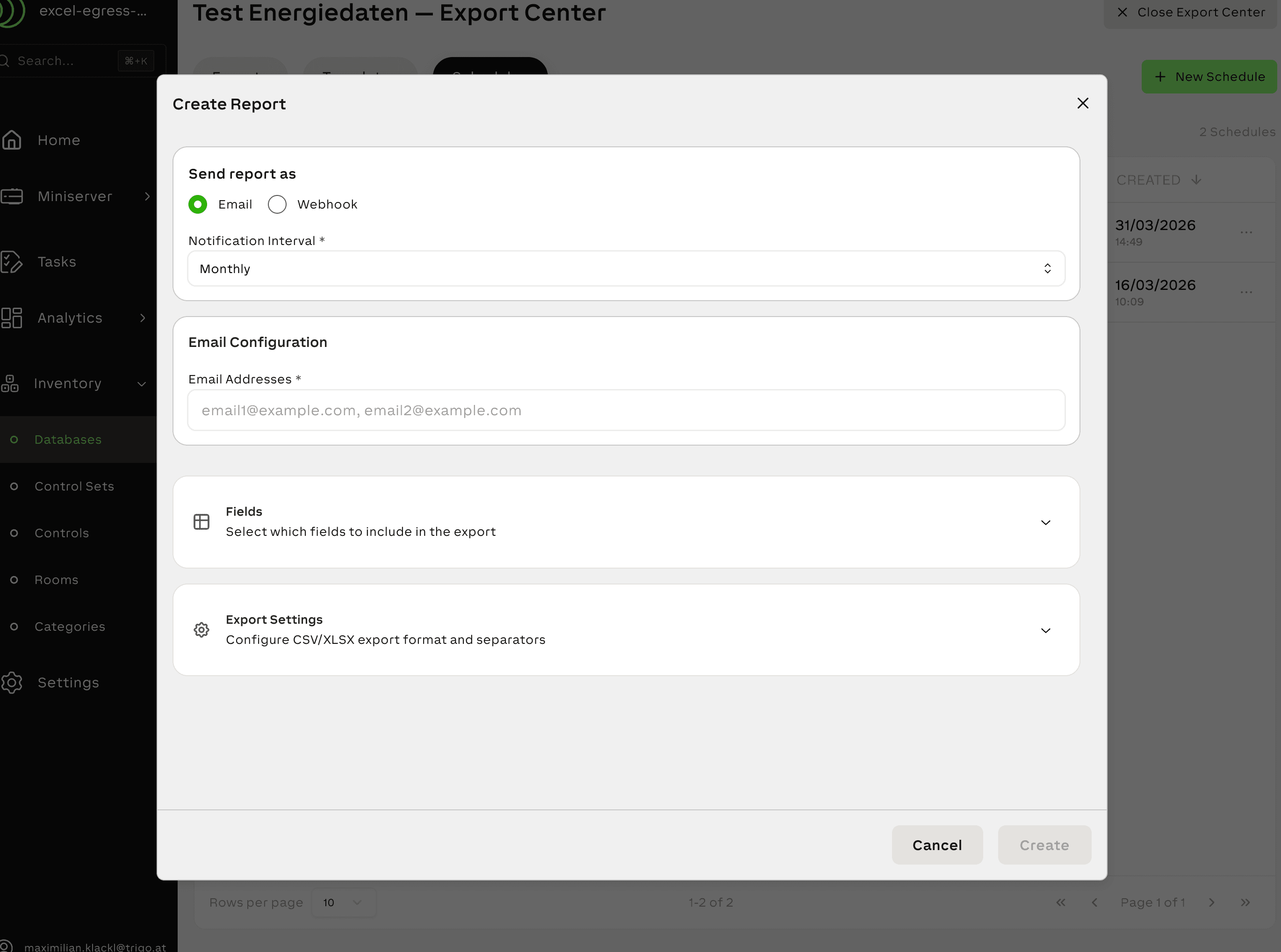
- Configure the schedule:
- Interval — Daily, Weekly, Monthly, Quarterly, or Yearly
- Output format — CSV only, XLSX only, or both
- Delivery method — Email recipients or webhook URL
- Time range — The data period to export each time
- Click Save
Managing Schedules
| Action | Description |
|---|---|
| Edit | Modify schedule settings |
| Send Now | Trigger an immediate export (only when active) |
| Toggle Active/Inactive | Enable or disable the schedule without deleting it |
| Delete | Remove the schedule permanently |
Schedule Limits
| License | Maximum Schedules |
|---|---|
| Regular | 1 per database |
| Enterprise | 10 per database |
Webhook Payload Format
When using webhook delivery, the system sends a JSON payload via HTTP POST:
{
    "metadata": {
        "source": {
            "id": "db-12345",
            "name": "Energy Database",
            "info": {
                "table_id": "0",
                "schema": [
                    {
                        "id": "energy_consumed",
                        "label": "Energy Consumed",
                        "type": "number",
                        "format": "<v.2> kWh"
                    }
                ]
            }
        },
        "content_config": {
            "fields": ["energy_consumed", "device_temperature"],
            "start_date": "2025-01-15T00:00:00Z",
            "end_date": "2025-01-21T23:59:59Z"
        },
        "generatedAt": "2025-01-22T08:00:00Z",
        "recordCount": 168
    },
    "data": [
        {
            "timestamp": "2025-01-15T00:00:00Z",
            "type": "wallbox_session",
            "device_displayname": "Wallbox Garage",
            "session_start": "2025-01-15T00:00:00Z",
            "session_end": "2025-01-15T02:30:00Z",
            "dynamic_fields": {
                "energy_consumed": 45.8,
                "device_temperature": 22.5
            }
        }
    ]
}| Field | Description |
|---|---|
metadata.source | Database information including ID, name, and schema definition |
metadata.content_config | Selected fields and date range for the export |
metadata.generatedAt | ISO timestamp when the export was generated |
metadata.recordCount | Total number of records in the payload |
data[].timestamp | Record timestamp in ISO format |
data[].type | Database row type identifier |
data[].device_displayname | Human-readable device name |
data[].dynamic_fields | Custom database fields as configured in the schema |
Troubleshooting
For common export issues, see the Troubleshooting Guide.
Related Documentation
- Databases — Create data sources for exports
- Export Database Data — Export database records from the database detail page
- Value History — View measurement data before exporting
- Charts — Export chart data
- License Plans — Export and schedule limits by license
- User Permissions — Who can create exports and schedules