Rooms
Browse rooms across devices and organize them into groups
The Rooms page gives you a unified view of all Loxone rooms across your connected Miniservers. Rooms are defined in Loxone Config and automatically synced to Exosphere. Use this page to browse, search, and organize rooms into custom groups for cleaner navigation.
Open Inventory → Rooms to get started.
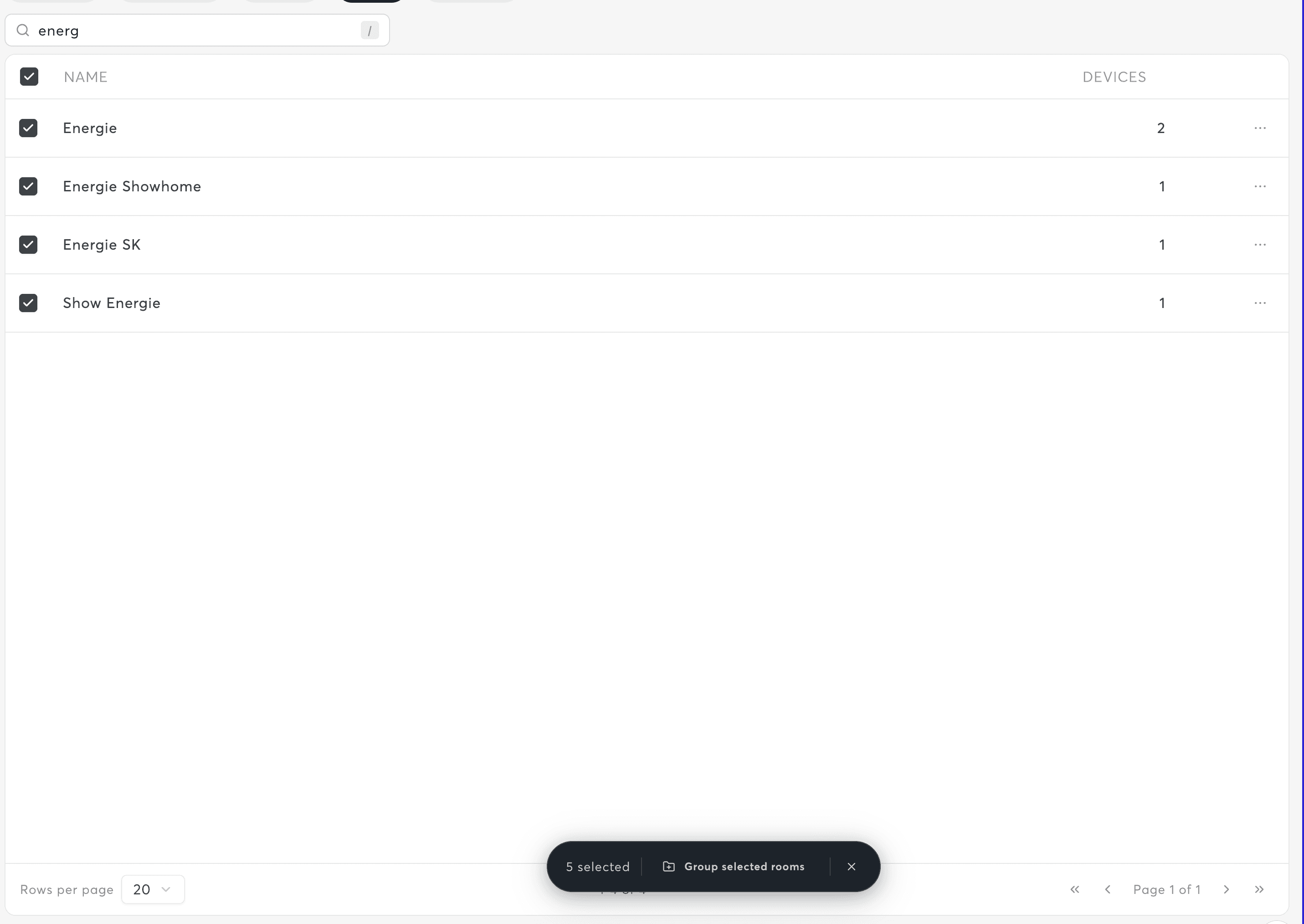
List View and Search
Use the search field to filter rooms by name. The table displays:
| Column | Description |
|---|---|
| Name | Room or group name |
| Device Count | Number of controls assigned to this room |
| Selection | Checkbox for bulk grouping actions |
Groups are visually distinguished with a folder indicator, making it easy to tell grouped from ungrouped rooms at a glance.
Rooms are read from your Miniserver structure and cannot be renamed or deleted in Exosphere. Use Loxone Config to modify room assignments.
Group Management
Groups let you organize related rooms together for cleaner navigation. For example, you might group "Living Room" and "Dining Room" under a "Ground Floor" group.
Creating a Group
- Select one or more ungrouped rooms using the checkboxes
- Click "Group selected rooms"
- Enter a group name and save
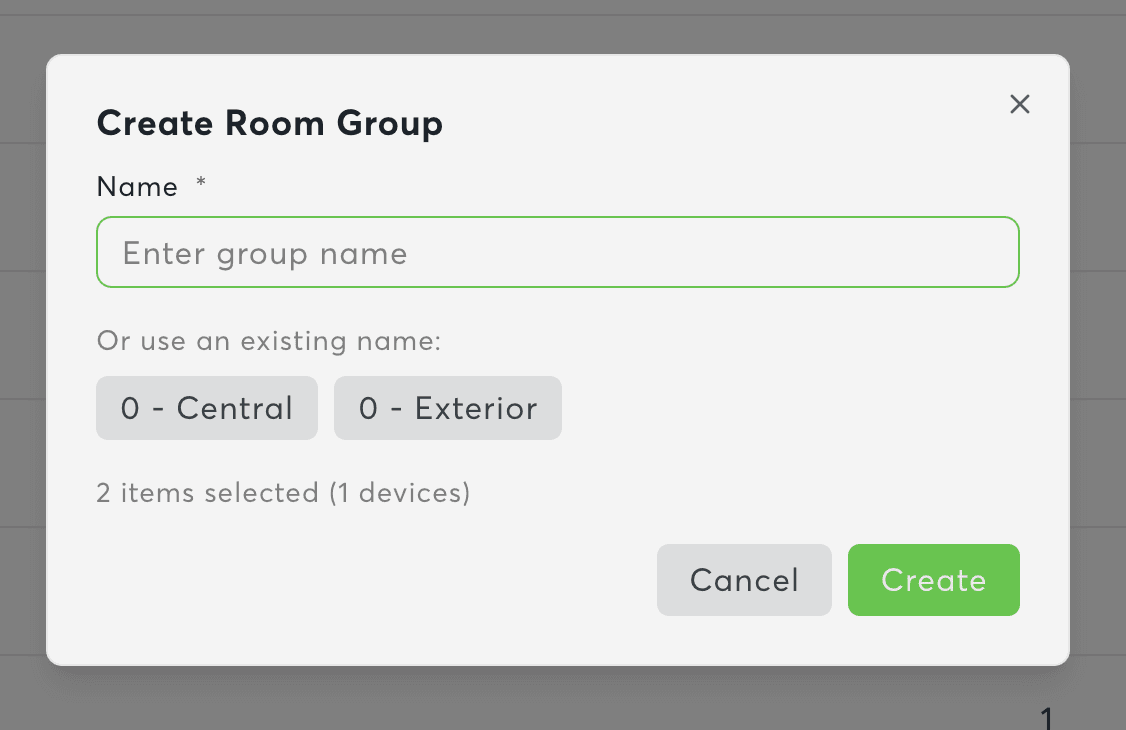
Managing Groups
From the group panel you can:
- Rename the group
- Remove members – Rooms return to the ungrouped list
- Delete the group – Removes the group but keeps the rooms
Grouping is workspace-level and does not affect your Loxone Config. All team members see the same groups.
Navigation Shortcut to Controls
Each room row provides a "Navigate to Controls" link. This opens Inventory → Controls with a prefilled room filter, showing only controls that belong to that room.
Permissions
| Role | Access |
|---|---|
| Owner, Administrator, Editor | Full access (view, group, manage) |
| Viewer | No access |
Related Documentation
- Controls – Filter controls by room
- Categories – Manage category grouping with similar workflows
- Inventory Overview – Inventory section overview