Databases
Create custom database tables with device data, filtering, sorting, and export capabilities
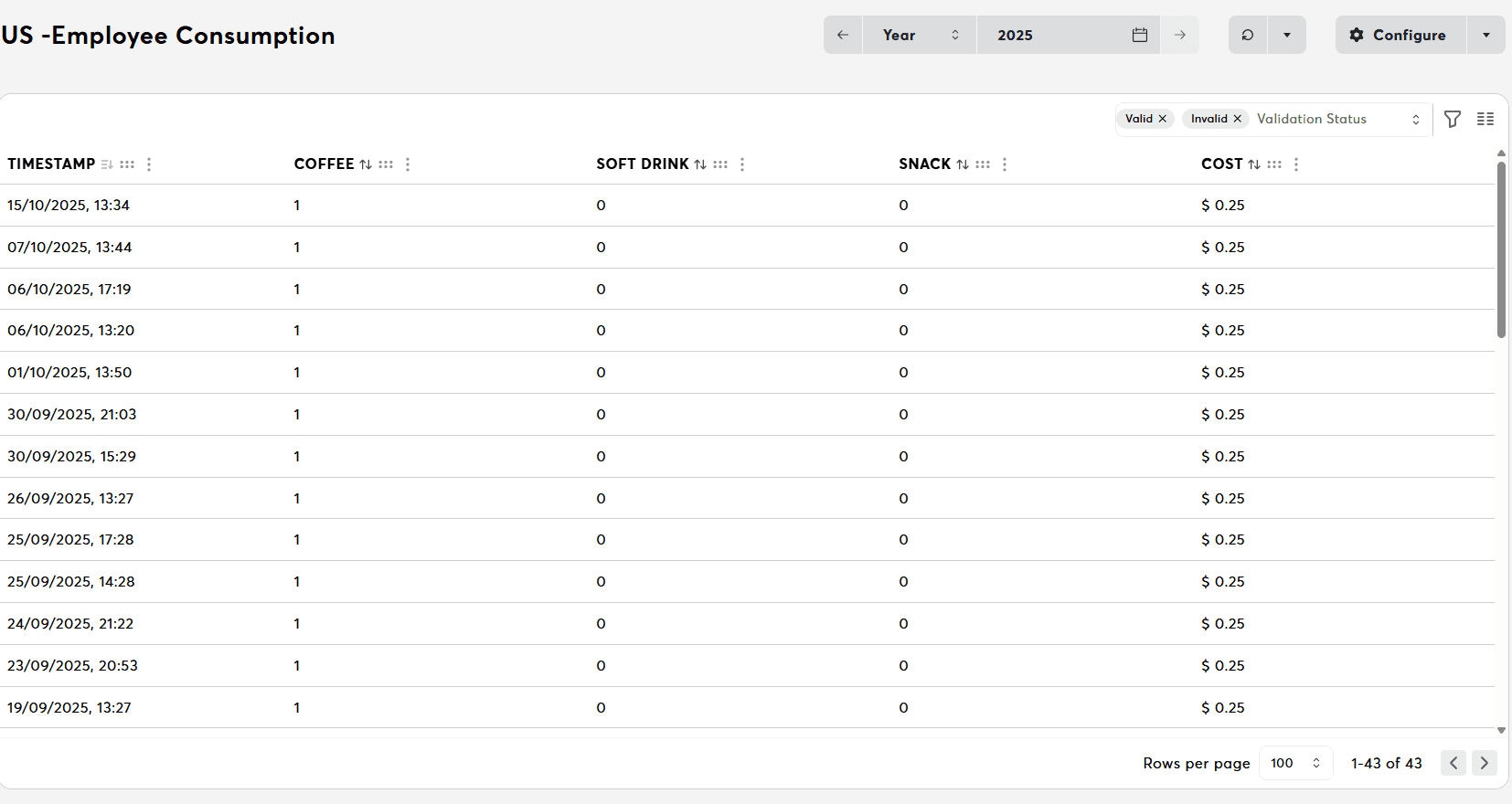
Creating a Database in Exosphere
Step-by-Step Guide
-
Navigate to Inventory → Databases and click "New Database"
-
Configure Database Settings
- Database name (required) – Descriptive name
- Description (optional) – Purpose or data source
- Database ID (required) – Unique identifier for the database
-
Create Database Schema Add columns by clicking "+ Add Column". For each column, configure:
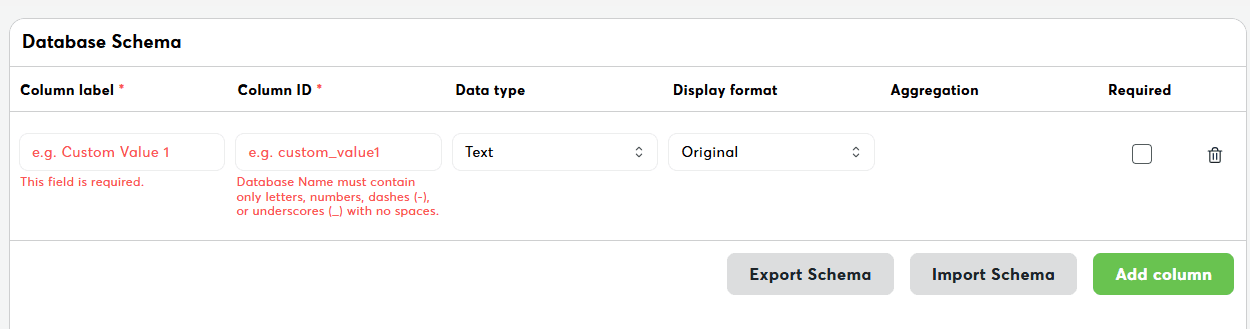
Schema Field Configuration
Column Label
What: Display name shown in the UI
Format: Free text, user-friendly
Example: "Custom Value 1", "Device Temperature", "Status Message"
Column ID
What: Technical column name in the database
Format: Only a-z, 0-9, -, _ (no spaces!)
Example: custom_value1, device_temperature, status_msg
Validation rules:
- No spaces
- No uppercase letters
- No special characters except
-and_ - Must be unique
Data Type
Options:
- Text: Strings, varchar
- Number: int, float, decimal
- Boolean: true/false
- Date/Timestamp: Timestamps
Display Format
What: How the value is displayed in the UI Options:
- Original: Raw value from DB
- Formatted: With formatting (e.g. thousand separators for numbers)
- Custom: Available based on data type (e.g. date format)
Number Formatting Options:
<v>: Format according to Miniserver settings<v.0>: Value without decimals<v.1>: Value with 1 decimal<v.2>: Value with 2 decimals<v.3>: Value with 3 decimals
Example: temperature <v.2>°C
Date/Timestamp Formatting Options:
y: Calendar yearM: Monthd: Day of monthD/DDD: Day of yearh: Hour [1-12]H: Hour [0-23]m: Minutes: Second
Example: yyyy-MM-dd HH:mm:ss
All options: Unicode Date Field Symbol Table
Aggregation
What: For metrics/reports - how values are aggregated Options:
- None: No aggregation
- Sum: Total sum
- Avg: Average
- Min/Max: Minimum/Maximum
- Count: Count of records
Required
What: Checkbox for mandatory field Checked = Value must always be present
Example Configuration:
Column label:     Device Temperature
Column ID:        device_temperature
Data type:        Number
Display format:   Formatted
Aggregation:      Avg
Required: ☑- Save Database Click "Save" – Database is now accessible to workspace members
Connecting Loxone Config to Exosphere Databases
After creating a database in Exosphere, you need to configure the corresponding database connectors in Loxone Config to send data from your Miniserver to Exosphere.
Prerequisites
- Exosphere Connection Active – Ensure your Miniserver is connected to Exosphere via Network Periphery → Exosphere
- Database Created in Exosphere – Create the database in Exosphere first and export its schema
- Schema Exported – Export the database schema (.json) from Exosphere for import into Loxone Config
Loxone Config Setup
1. Import Database Table
- Open Loxone Config and navigate to your project
- Add a new "Database Table" from the periphery tree
- Import the schema (.json file) exported from Exosphere
- Verify that Database ID and Column IDs match exactly with Exosphere
2. Choose the Right Connector
Loxone provides two database connector types:
| Connector Type | Use Case | Example |
|---|---|---|
| Session Database Connector | Events with start and end time | Wallbox charging sessions, presence tracking, heating cycles |
| Event Database Connector | Single-point-in-time events | Door openings, alarm triggers, energy consumption snapshots |
Loxone Documentation: - Session Database Connector – For time-range events - Event Database Connector – For instant events
3. Configure Session Database Connector
For events with start and end times:
- Drag "Session Database Connector" from the building blocks onto your programming canvas
- Connect SStart input to the signal that starts the session (e.g., wallbox starts charging)
- Connect SEnd input to the signal that ends the session (e.g., wallbox stops charging)
- (Optional) Use CI1–CI16 custom inputs for additional data (e.g., energy consumed, user ID)
- Connect the API Connector output of the Session Database Connector to the API Connector input of your Database Table
Example Use Case: Wallbox Charging Sessions
- SStart: Wallbox charging state = ON
- SEnd: Wallbox charging state = OFF
- CI1: Energy consumed (kWh)
- CI2: Charging power (kW)
- CI3: User RFID tag
4. Configure Event Database Connector
For single events at a specific time:
- Drag "Event Database Connector" from the building blocks onto your programming canvas
- Connect ETr input to the event trigger (e.g., door sensor triggered, button pressed)
- (Optional) Use CI1–CI16 custom inputs for event-specific data (e.g., temperature, status code)
- Connect the API Connector output of the Event Database Connector to the API Connector input of your Database Table
Example Use Case: Door Access Log
- ETr: Front door opened (pulse on door contact)
- CI1: Door name/location
- CI2: User who opened (from access control)
- CI3: Current temperature outside
5. Save and Upload Configuration
After configuring the connectors:
- Save your Loxone Config project
- Upload the configuration to your Miniserver
- Verify in Exosphere that data starts appearing in the database
Database Features
Database Detail View
When you open a database, Exosphere shows a full data table with:
- Time range controls
- Validation status filtering
- Configurable columns
- Sorting and pagination
- Database export
Available actions include Edit, Rename, Delete, and Export. See Export Database Data for the export workflow.
Database Edit View
Open a database and click Edit to manage:
- Field schema (add, remove, reorder, change field types)
- Database settings
- Sharing options (Enterprise)
Use Save to apply changes or Cancel to discard unsaved edits.
Filtering
Apply powerful filters to narrow data:
| Filter Type | Description | Example |
|---|---|---|
| Exact Match | Exact value match | Status = "Online" |
| Date Range | Time-based filtering | Last Seen > -24h |
Sorting
Sort database by any column:
- Single-column – Click column header
Permissions
- View access: All workspace roles can open database data.
- Create/Edit/Delete: Owner, Administrator, and Editor roles.
- Permissions are evaluated per structure element.
Troubleshooting
For common database issues, see the Troubleshooting Guide.
Related Documentation
- Inventory Overview – Inventory section overview
- Export Database Data – Export database records from the database detail page
- Value History – Measurement-based table views
- Export Center – Export data and schedule automated reports
- Charts – Visualize database data
- Structure File Integration – Device metadata
- User Permissions – Role-based access control