Manage Recipient Groups
Create reusable groups of people who receive alert rule notifications
Recipient groups let you reuse the same recipients across multiple alert rules. Use them for operational teams such as Facilities On-call, Energy Management, Security Desk, or HVAC Service Partner.
Create a Recipient Group
- Navigate to Alerts.
- Open Recipient groups.
- Click New recipient group.
- Enter a group Name.
- Select one or more recipients.
- Click Save recipient group.
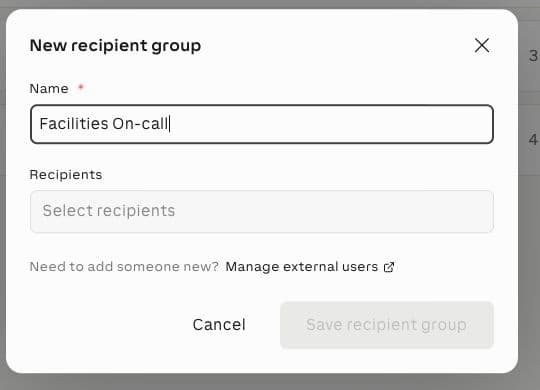
The save button is enabled only after the group has a name and at least one recipient.
Add Recipients
Recipient groups can contain workspace users and external users that are available to the workspace.
Use workspace users when the person already has access to Exosphere. Use external users when a person should receive alert notifications but should not sign in to the workspace.
To add a new external user while creating a group, click Manage external users. This opens the team member settings where external users are managed.
Rule channels decide the delivery method
Recipient groups are reusable recipient lists. The alert rule channel decides whether a selected group receives email or SMS.
Recommended Groups
Create groups that match real response responsibilities.
| Group | Typical members | Use for |
|---|---|---|
| Facilities On-call | Facility technicians and shift leads | HVAC, pump, plant-room, and comfort alerts |
| Energy Management | Energy manager and building operator | Grid consumption, PV production, battery, and meter alerts |
| Security Desk | Security or reception team | Door, gate, access, and critical occupancy-related alerts |
| HVAC Service Partner | External maintenance partner | Escalations that require contractor follow-up |
Avoid broad groups such as Everyone unless every member can take action on the alert.
Edit or Delete a Recipient Group
- Navigate to Alerts → Recipient groups.
- Find the group.
- Use the row action to edit or delete the group.
- Save your changes.
If a group is used by alert rules, changing its members changes who receives notifications for those rules. Deleting a group removes it from alert rules that reference it.
Related Documentation
- Create an Alert Rule - Add groups to alert channels
- Manage Your Alert Notifications - User-level alert participation and phone settings
- Alert Rule Examples - Example recipient group usage
- Alert Reference - Channel and recipient compatibility
- Team Management - Manage workspace users
- Notification & Alert Troubleshooting - Resolve delivery issues