Structure Panel & Sidebar
Navigate and organize your workspace with hierarchical structure, favorites, and filtering
What is the Structure Panel?
The Structure Panel is a collapsible sidebar that shows your workspace hierarchy. Use it to:
- Organize Miniservers into logical groups and folders
- Filter content by structure elements (folders, buildings, departments)
- Navigate quickly to specific areas of your workspace
- Manage settings hierarchically (backups, updates, notifications)
- View favorites for quick access to frequently used items
- Search for specific elements or devices
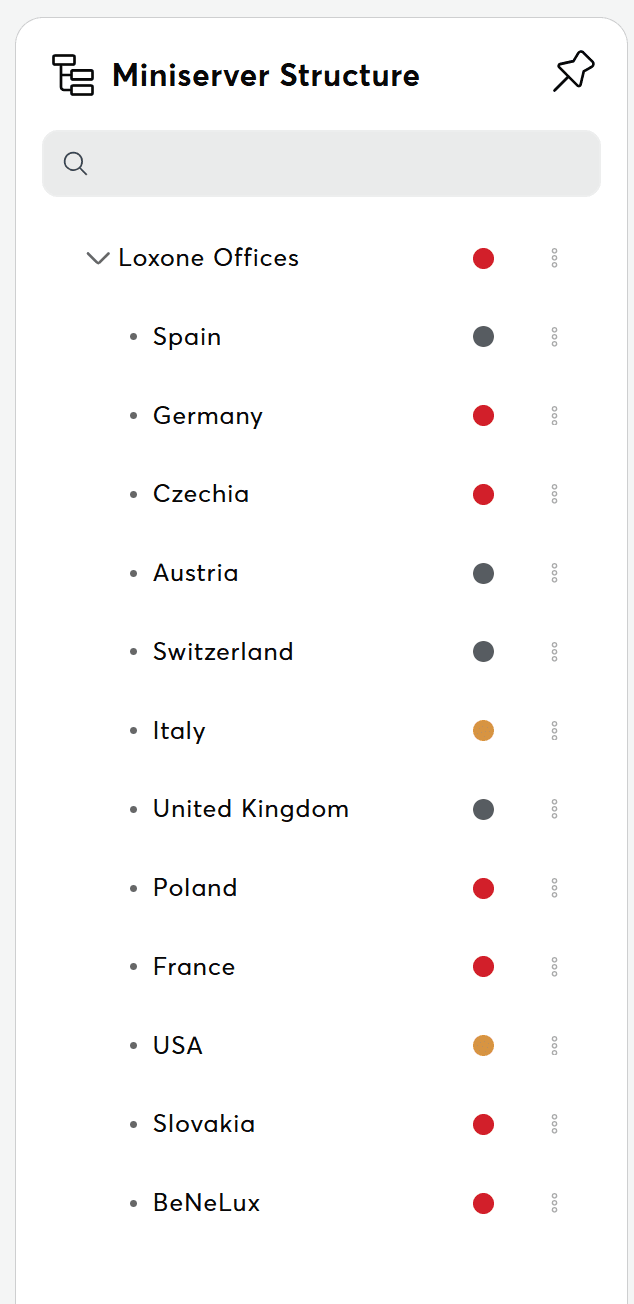
Structure Panel Components
Main Elements
Structure Tree:
- Hierarchical tree view of your workspace
- Expandable/collapsible folders
- Visual indicators for configured settings
- Search capabilities
Search Bar:
- Real-time search across structure
- Filters tree as you type
- Searches element names and properties
Panel States
Closed State
- Panel hidden from view
- More screen space for main content
- Click structure icon to reopen
Open State
- Panel visible temporarily
- Auto-closes when clicking outside (desktop)
- Manual toggle on mobile
Pinned State
- Panel stays open permanently
- Pushes main content to the right
- Persists across navigation
- Recommended for frequent structure use
Workspace Structure Hierarchy
Organizational Levels
Workspace (Root):
- Top-level container for everything
- Default settings apply here (see Settings Overview)
- All elements and devices descend from root
- Workspace-wide policies and permissions
Structure Elements:
- Custom organizational folders
- Can contain sub-elements and devices
- Inherit settings from parent
- Can override parent settings
- Examples: Buildings, Departments, Regions, Customers
Miniservers (Devices):
- Assigned to structure elements
- Inherit element settings
- Can have device-specific overrides
Example Hierarchy
Workspace (Company HQ)
├── Building A
│   ├── Ground Floor
│   │   ├── Miniserver - Reception
│   │   └── Miniserver - Lobby
│   ├── First Floor
│   │   ├── Miniserver - Office 101
│   │   └── Miniserver - Office 102
│   └── Second Floor
│       └── Miniserver - Management
└── Building B
    ├── Ground Floor
    │   └── Miniserver - Warehouse
    └── First Floor
        └── Miniserver - Lab
Navigating the Structure
Expanding and Collapsing:
- Click arrow next to element name to expand/collapse
- Expansion state persists during session
Selecting Elements:
- Click element name to select it
- Selected element highlighted
- Main content filters to show selected element's items
- Selection persists across page navigation
Structure Element Management
Editing Structure Elements
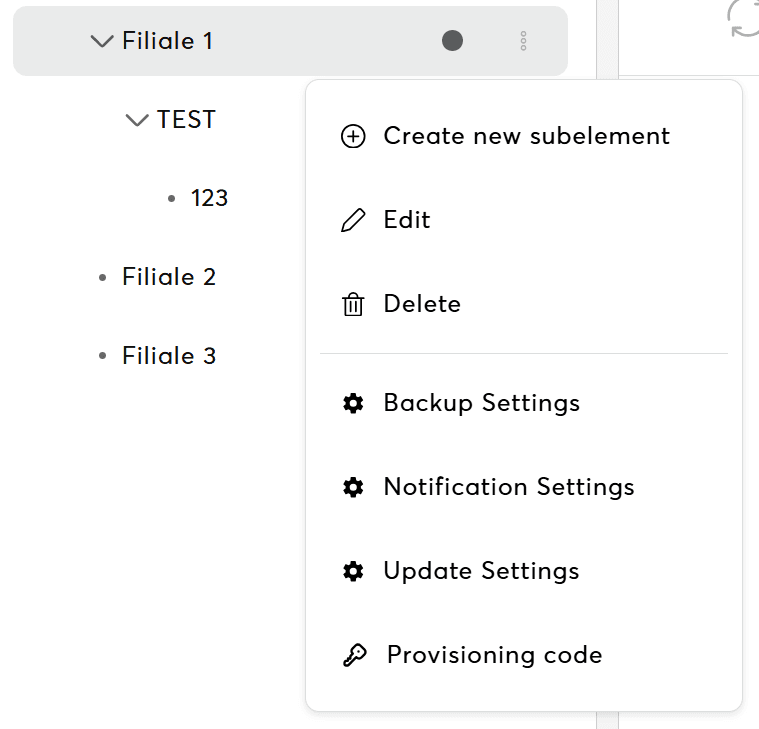
Renaming Elements:
- Right-click element in structure panel
- Select "Edit" or "Edit folder"
- Modify name
- Click "Save"
- Changes reflected immediately
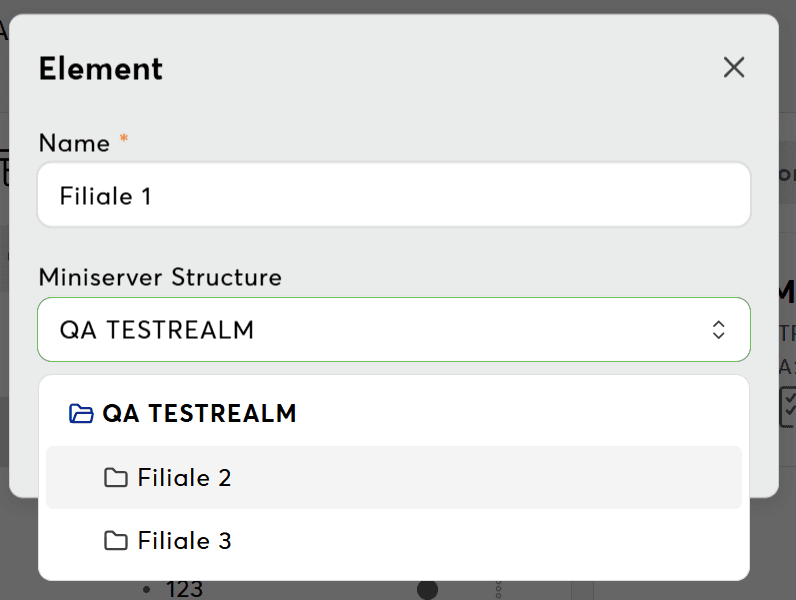
Moving Elements:
- Navigate to Workspace Structure page
- Find element to move
- Click "Edit"
- Change structure element
- Element moves in hierarchy (all children move with it)
- Settings inheritance updates automatically
Deleting Structure Elements
Process:
- Navigate to Workspace Structure page
- Select element to delete
- Click "Delete" button
- Confirm deletion warning
- Element and all child elements removed
Element Provisioning Codes
What are Element Provisioning Codes?
Element-specific provisioning codes allow you to:
- Pair Miniservers directly to a specific structure element
- Simplify device onboarding to correct location
- Avoid manual assignment after pairing
- Useful for pre-configured installations
When to Use:
- Pre-configured for specific locations
- Simplifying installer workflows
- Ensuring correct element assignment
Pairing with Element Code
See Adding Miniservers for more details on pairing devices.
Filtering with Structure
How Structure Filtering Works
Filter Activation:
- Select an element in structure panel
- Main content filters to show only items in/under that element
- "Structure filter active" indicator appears
- Filter persists across page navigation
What Gets Filtered:
- Device Lists: Only devices in selected element and children
- Visualizations: Charts/dashboards for selected devices
- Settings Pages: Backup/update/notification settings for element
- Tasks: Tasks associated with filtered devices
- Alerts: Alerts for filtered devices
Filter Scope:
- Inclusive: Shows selected element AND all descendants
- Hierarchical: Respects parent-child relationships
- Workspace-wide: Affects all pages and views
Related Documentation
- User Permissions & Roles - Permissions and role management
- Team Management - Invite and manage team members
- Settings Overview - Workspace settings configuration
- Workspace Issues - Structure panel troubleshooting
- FAQ - Frequently asked questions about structure and favorites