Controls
Browse controls, filter by structure, and open chart workflows
What the Controls Page Provides
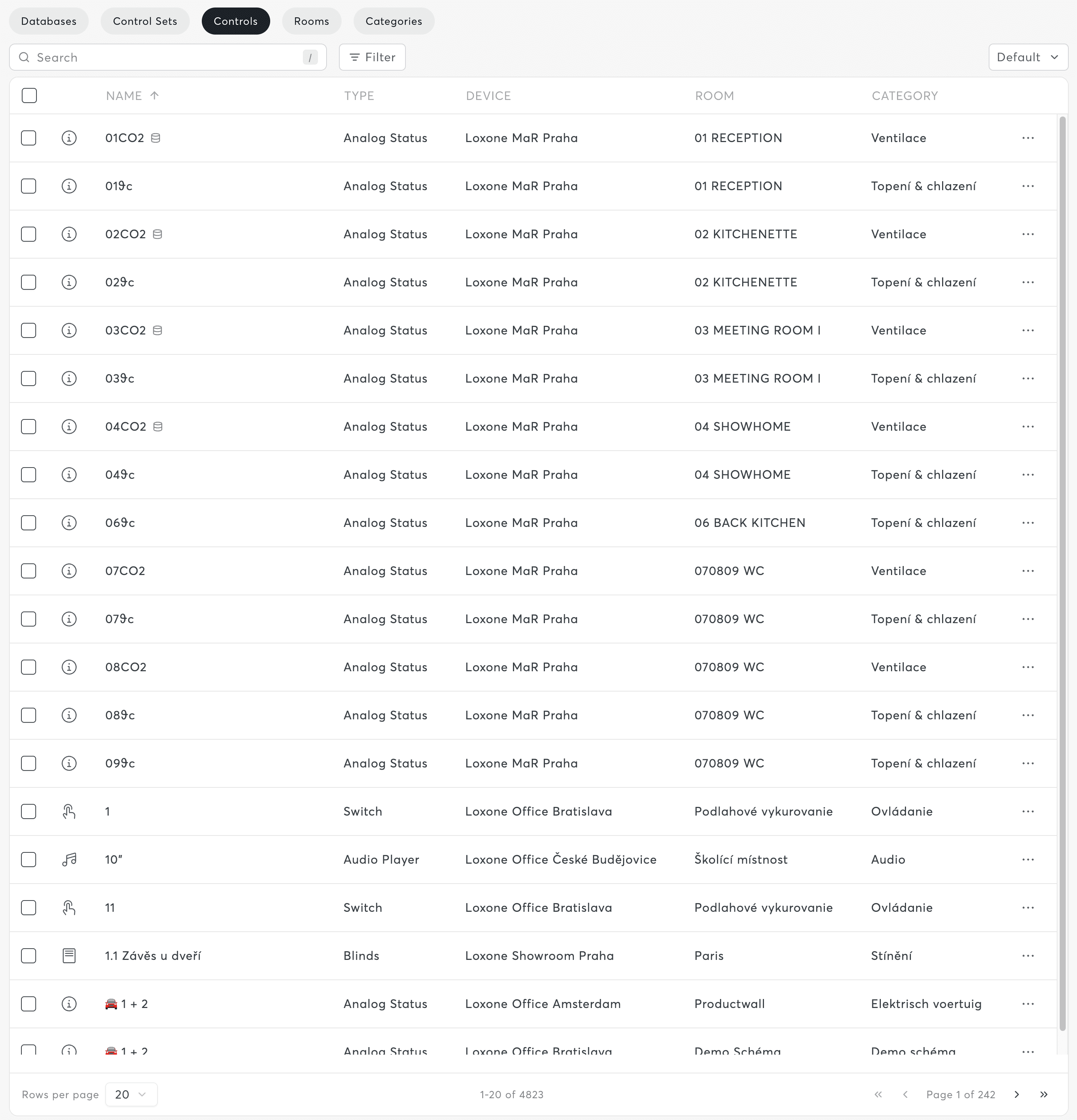
The Controls page is a searchable inventory of all function blocks from connected Miniservers.
Open Inventory → Controls.
List View Features
The list supports:
- Search by control name
- Sorting by name, type, device, room, and category
- Multi-select for bulk actions
- Row actions for chart and statistics workflows
- Saved views for reusable filter presets
Filtering and Saved Views
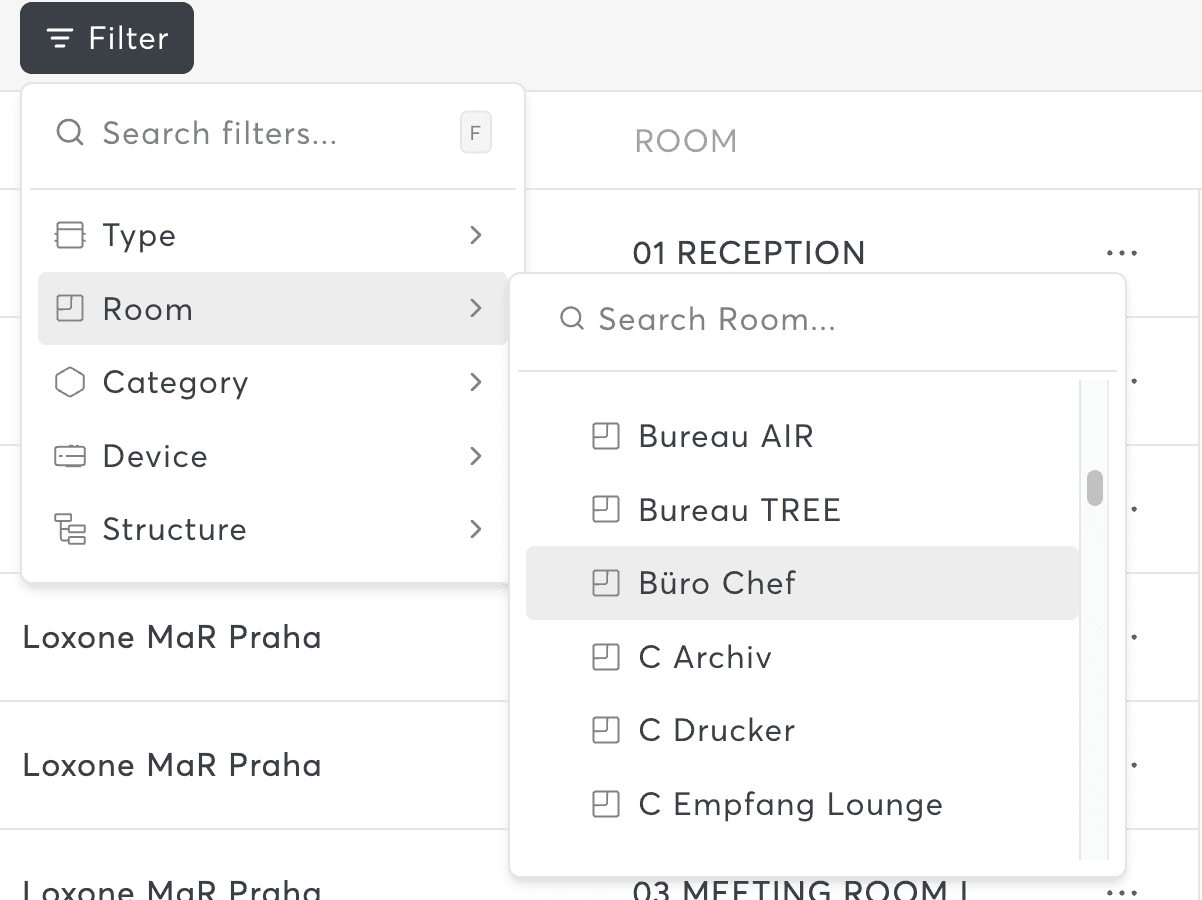
You can filter controls by:
- Control type
- Room
- Category
- Device
- Structure
Use saved views to store and reapply filter combinations.
Structure filtering is synchronized with the workspace structure panel.
Row Actions
Available actions include:
- Show chart
- Add to Chart
- Create Chart
- Import Statistics (for supported controls)
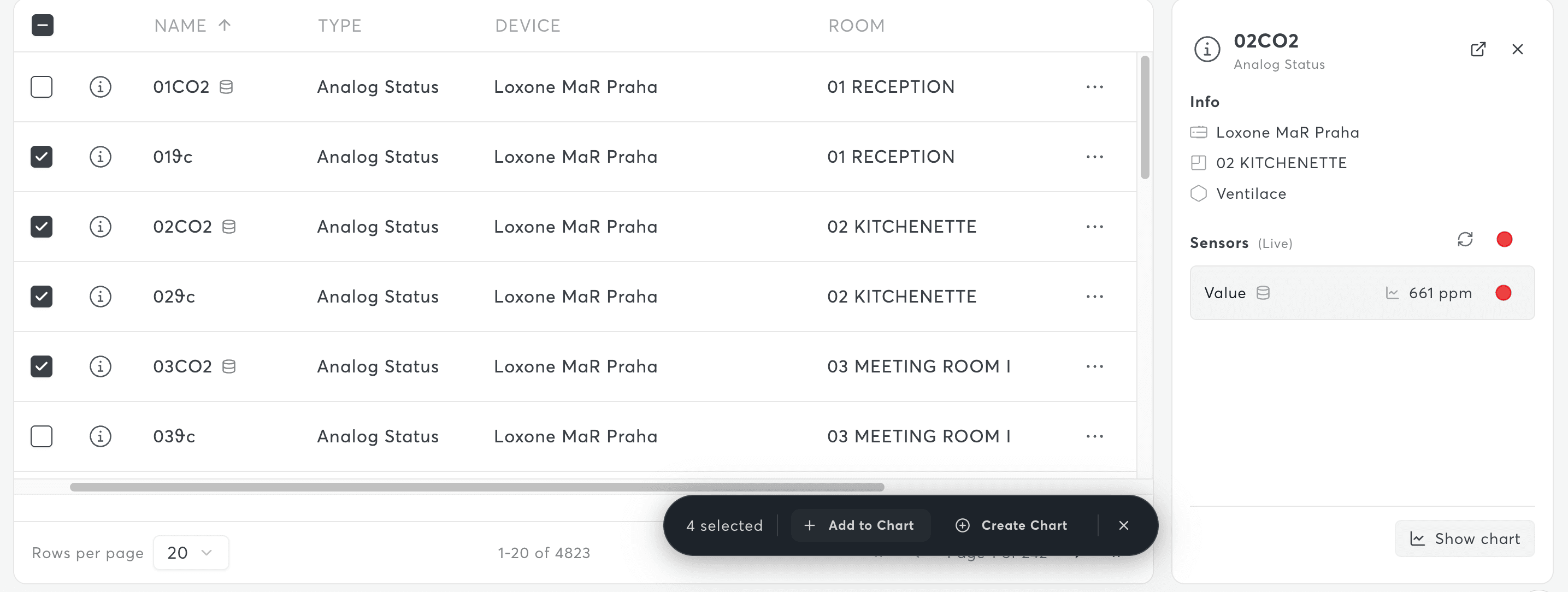
With multiple selected controls, you can run bulk Add to Chart and Create Chart actions.
Control Details Panel
Selecting a control opens a side panel with:
- Sensor details
- Sensor-type tabs
- Links to chart workflows
This helps you validate the selected control before creating charts.
Control Chart Page
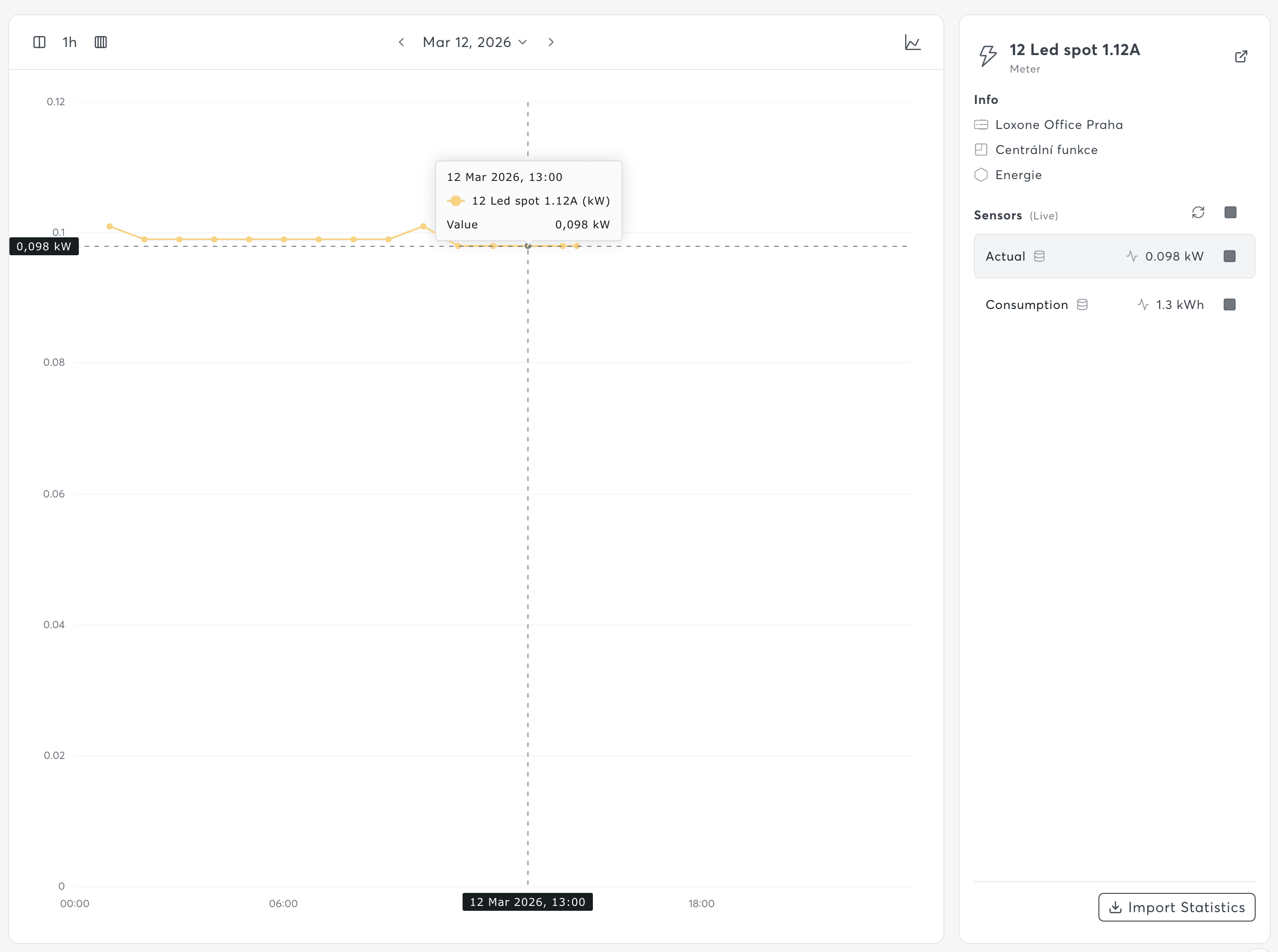
From the controls list, you can open a dedicated chart page for a single control. The chart page supports:
- Time range selection
- Chart type switching
- CSV export
- Sensor sidebar context
Permissions
- Access: Owner, Administrator, Editor
- Viewer roles: No access
Related Documentation
- Control Sets - Reuse filter logic as Control Sets
- Charts - Chart types and visualization guidance
- Inventory Overview - Inventory section overview