Control Sets
Create reusable, filter-based groups of controls for charts and dashboards
Control Sets are dynamic, filter-based collections of controls. Instead of manually selecting the same controls in every chart or dashboard, you define filter criteria once and reuse the set. When new devices or controls are added that match your filters, they are automatically included.
Enterprise Feature
Control Sets are available in Enterprise workspaces only.
Navigation
Open Inventory → Control Sets to view, create, and manage your control sets.
Creating a Control Set
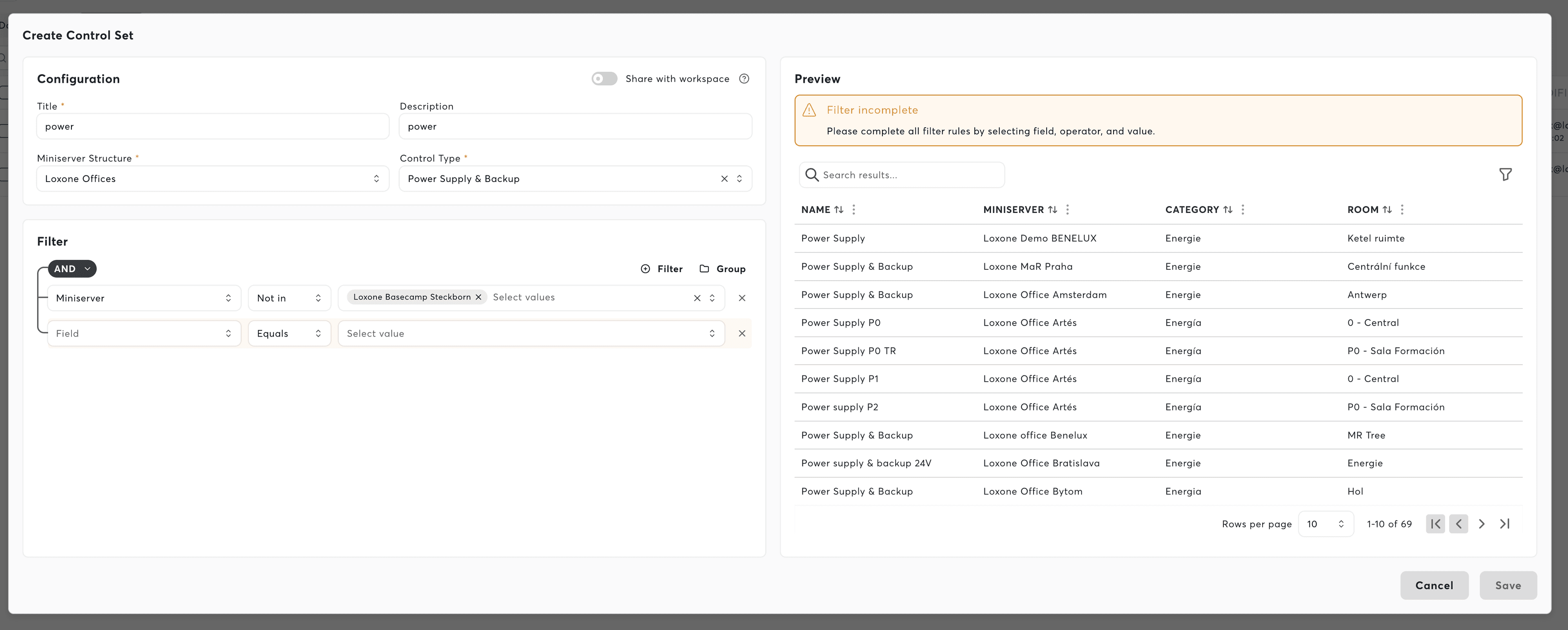
The creation dialog has a split layout: configuration on the left, live preview on the right.
-
Enter a name (required, max 100 characters) and an optional description (max 200 characters)
-
Select element scope — Choose which structure element the set belongs to. This controls access and visibility within the workspace hierarchy.
-
Select control type — Choose the type of control (e.g., temperature sensors, switches, dimmers). Available types are derived from your connected devices.
-
Configure filter rules — Optionally narrow down which controls match using filter criteria:
Field Description Miniserver Filter by device name, Miniserver name, or serial number Room Filter by room name assigned in Loxone Config Category Filter by category name assigned in Loxone Config Each field supports operators: equals, not equals, in list, not in list, contains, and not contains. Combine multiple rules with AND / OR logic groups.
-
Review the preview — The right panel shows matching controls in real-time as you configure filters. The preview includes control name, device, category, and room.
-
Click "Save"
Filters are dynamic — when new devices are added that match your criteria, they are automatically included in the set without any changes.
List View
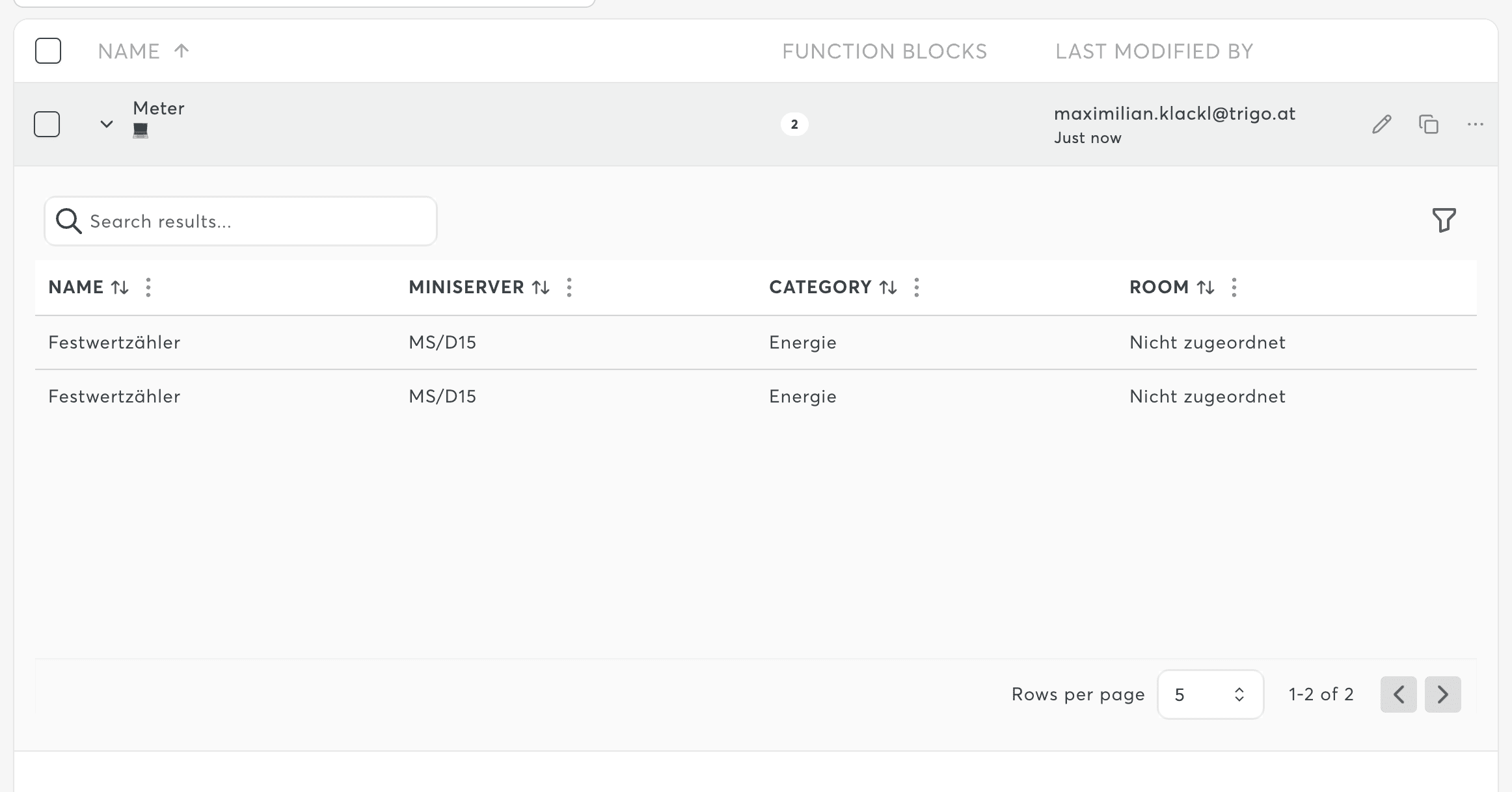
The control sets list shows all sets for the currently selected structure element:
| Column | Description |
|---|---|
| Name | Control set name with element breadcrumb |
| Members | Number of controls currently matching the filter |
| Modified | Who last modified the set and when |
Interactions
- Click a row to expand it and see the matching controls in a preview table
- Double-click a row to open the edit dialog
- Search to filter control sets by name (debounced)
- Pagination at the bottom of the list
Actions per Control Set
| Action | Description |
|---|---|
| Edit | Open the creation dialog pre-filled with the current configuration |
| Duplicate | Create a copy with a "(Copy)" suffix appended to the name |
| Delete | Remove the control set |
Bulk deletion is available when multiple control sets are selected.
Shared and Read-only Behavior
Control Sets belong to a structure element and follow the workspace's permission hierarchy:
- If you have edit permission on the owning element, you can modify the set
- If you only have view access (e.g., via structure sharing), the set is visible and usable but cannot be edited or deleted
- The Create, Edit, Duplicate, and Delete actions are hidden when you lack edit permissions
Permissions
| Role | Access |
|---|---|
| Owner, Administrator, Editor | Create, edit, duplicate, and delete control sets |
| Viewer | View only — no modifications |
Permissions are determined by your role on the structure element where the control set is located, not just the workspace-level role.
Related Documentation
- Controls – Browse and filter individual controls
- Charts – Use control sets as data sources in charts
- Dashboards – Use control sets in dashboard panels
- Inventory Overview – Inventory section overview
- Permissions – Access control details