Alerts
Monitor telemetry sources and notify recipients when building values need attention
Alerts monitor recorded telemetry and notify selected recipients by email or SMS when a condition is met. Use alert rules for operational situations that should not rely on someone checking charts manually, such as overheating rooms, abnormal energy values, failed equipment states, or missing data from important controls.
Use alert rules for operational monitoring, for example room temperatures, energy values, technical equipment states, or missing telemetry from important controls.
Alert rules and workspace notifications are separate
This page describes rules under Alerts. Workspace notification settings for device status, health, tasks, licenses, and trials are configured separately under workspace settings.
What You Can Do
- Create rules for sensors or Function Block Sets
- Trigger alerts from threshold, sustained threshold, or no-data conditions
- Send notifications by email or SMS
- Notify workspace users, recipient groups, or external contacts
- Start alert rules from Inventory, charts, dashboards, and Function Block Sets
- Search and filter rules by status, severity, and tags
- Duplicate, edit, activate, deactivate, or delete existing rules
How Alerts Work
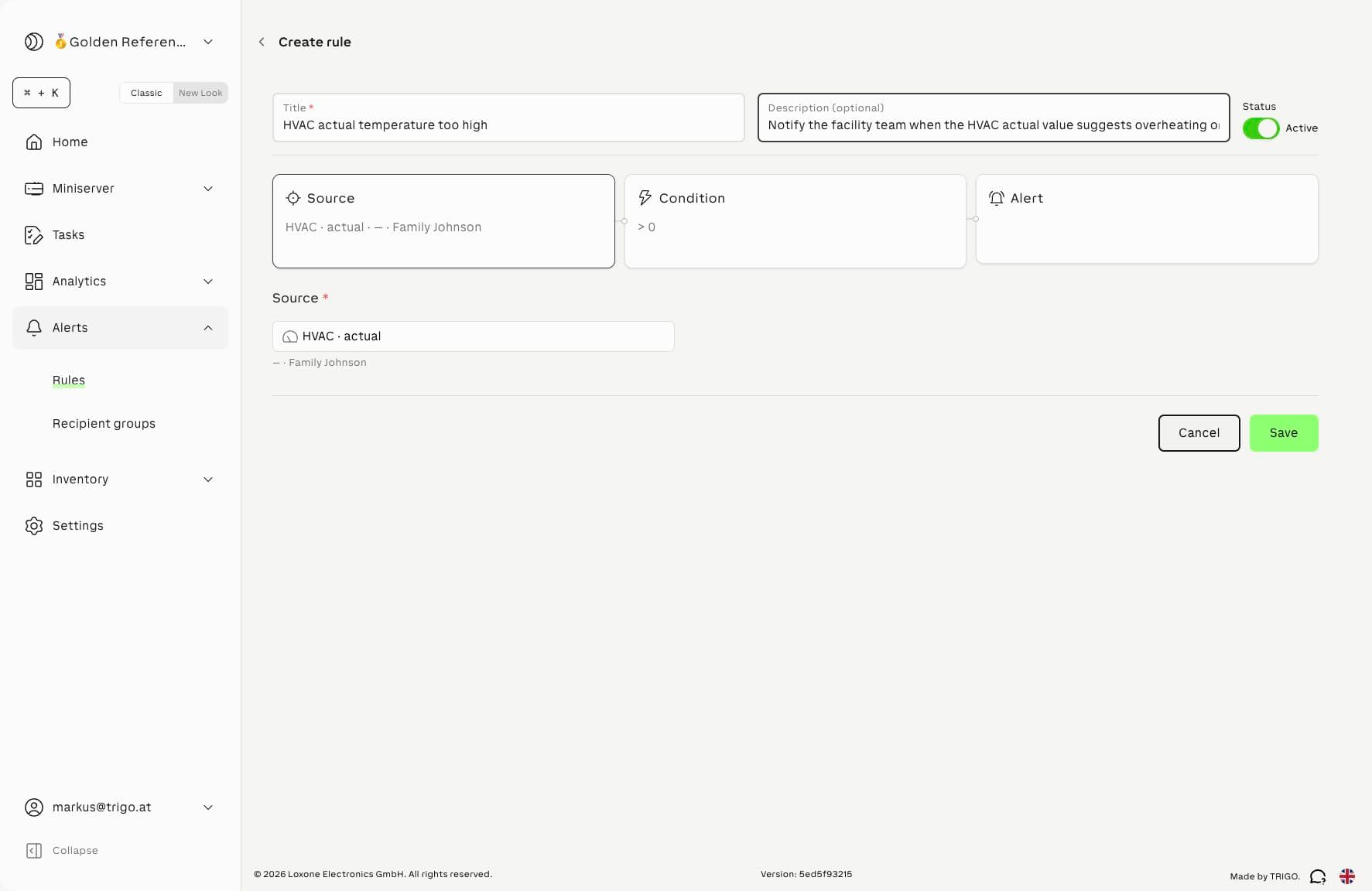
An alert rule has three parts:
| Part | What it controls | Example |
|---|---|---|
| Source | The sensor or Function Block Set to monitor | HVAC · actual · Family Johnson |
| Condition | The rule that decides when the alert matches | Actual value is greater than 27 |
| Alert channel | The delivery method, severity, and recipients | High severity email to Facilities On-call |
The rule editor shows these parts as Source, Condition, and Alert cards. Complete all required fields before saving the rule.
When to Use Alert Rules
Use alert rules for telemetry conditions that need operational follow-up.
| Scenario | Recommended condition | Example |
|---|---|---|
| Room temperature is too high | Threshold | Office temperature > 27 |
| A plant room stays too warm | Sustained threshold | Technical room temperature > 30 for 15 minutes |
| A meter stops reporting | No data | Heat meter has no data for 2 hours |
| Energy consumption is unexpectedly high | Threshold or Sustained threshold | Grid consumption > 80 kW for 10 minutes |
| A pump or ventilation value is stuck | Sustained threshold | Air handling unit output remains = 0 for 30 minutes |
Do not use alert rules for every minor value change. Too many low-value alerts make important notifications easier to miss.
Prerequisites
Before you create alert rules, check the following:
- The Telemetry Alerts feature is enabled for the workspace
- You have permission to edit the workspace or the relevant structure element
- The source sensor or Function Block Set is available in Exosphere
- The source records telemetry data
- At least one workspace recipient, recipient group, or external contact is available for the alert channel
- SMS recipients have a valid phone number
If Alerts is not visible, the feature may not be enabled or your role may not allow alert management.
Permissions and License Requirements
Alert access and alert delivery use separate checks:
- Permissions decide whether a user can open alert management, create rules, and manage recipients.
- Licenses decide whether SMS alert delivery is available and how much SMS capacity the workspace has.
Permissions
| Task | Required access |
|---|---|
| Open Alerts | Telemetry Alerts enabled and an edit-capable role in the workspace |
| Create, edit, duplicate, activate, deactivate, or delete rules | Administrator or Editor access for the workspace or the relevant structure elements |
| Create rules from Inventory, charts, or dashboards | Same alert management permission, plus edit access to the selected source |
| Manage recipient groups and external alert contacts | Administrator or Editor access in the workspace |
| Receive alert notifications | No edit role required; the person only needs to be selected as a recipient and have the required email address or phone number |
| Manage personal alert participation | The user can manage their own alert notification status under User Settings → Workspaces → Alert notifications |
In ENTERPRISE workspaces, structure permissions also limit which sources a user can use. A user only sees and manages alert rules for sources where they have edit access. Rules for sources outside that user's editable structure scope are hidden from the rule list.
Viewer roles cannot manage alert rules
Viewer and Viewer (with Loxone Config) roles can use the parts of Exosphere their role allows, but they cannot create or manage alert rules or recipient groups.
License Requirements
| Capability | Requirement |
|---|---|
| Email alert rules | Telemetry Alerts must be enabled for the workspace. Email delivery does not consume SMS Alert licenses. |
| SMS alert rules | The workspace needs an active SMS Alert license. In license management this is shown as SMS Alert licenses. |
| SMS capacity | The Exosphere Add-on Alert license provides SMS alert capacity. Current usage is shown under Settings → Subscription → SMS Alert licenses. |
| Adding SMS Alert licenses | A workspace administrator adds the Exosphere Add-on Alert license code under Settings → Subscription. |
Use email channels for routine operational visibility. Use SMS only for conditions that need immediate action, such as critical plant-room temperatures, missing telemetry from essential meters, or urgent HVAC failures.
SMS delivery needs both a license and a phone number
An SMS channel is only useful when the workspace has SMS Alert capacity and every selected recipient has a usable phone number. If SMS delivery is not available, configure an email channel or ask a workspace administrator to add the Exosphere Add-on Alert license.
Recommended Workflow
- Create reusable recipient groups for teams that should receive similar alerts.
- Create one alert rule for each operational condition.
- Use clear rule names that describe the problem, location, and source.
- Choose severity based on the action required from the recipient.
- Start with email unless the condition requires immediate SMS escalation.
- Review the rule list regularly for inactive or disabled rules.
For setup steps, see Create an Alert Rule and Manage Recipient Groups.
You can also start a rule from an existing view when the source is already visible. See Create Alerts from Existing Views.
Related Documentation
- Create an Alert Rule - Step-by-step rule setup
- Create Alerts from Existing Views - Start rules from Inventory, charts, dashboards, and Function Block Sets
- Manage Recipient Groups - Reusable alert recipients
- Manage Your Alert Notifications - User-level alert participation and phone settings
- Alert Rule Examples - Building automation examples
- Alert Reference - Conditions, channels, severities, and rule states
- Notification & Alert Troubleshooting - Common alert delivery issues
- Workspace Permissions - Role and structure-level access control
- License Management - Activate and review SMS Alert licenses