Create an Alert Rule
Configure a telemetry alert rule with a source, condition, channel, severity, and recipients
This guide shows how to create an alert rule from Alerts → Rules. The example monitors an HVAC actual value and sends a high-severity email when the value is too high.
Create the Rule
- Navigate to Alerts.
- Open Rules.
- Click New rule.
- Enter a Title.
- Optionally enter a Description.
- Keep Status set to Active if the rule should start evaluating after you save it.
Use a title that explains the problem without opening the rule, for example HVAC actual temperature too high.
Select the Source
- Open the Source card.
- Click the Source field.
- Choose whether to search Function Blocks or Function Block Sets.
- Search for the source.
- Select the required sensor or Function Block Set member type.
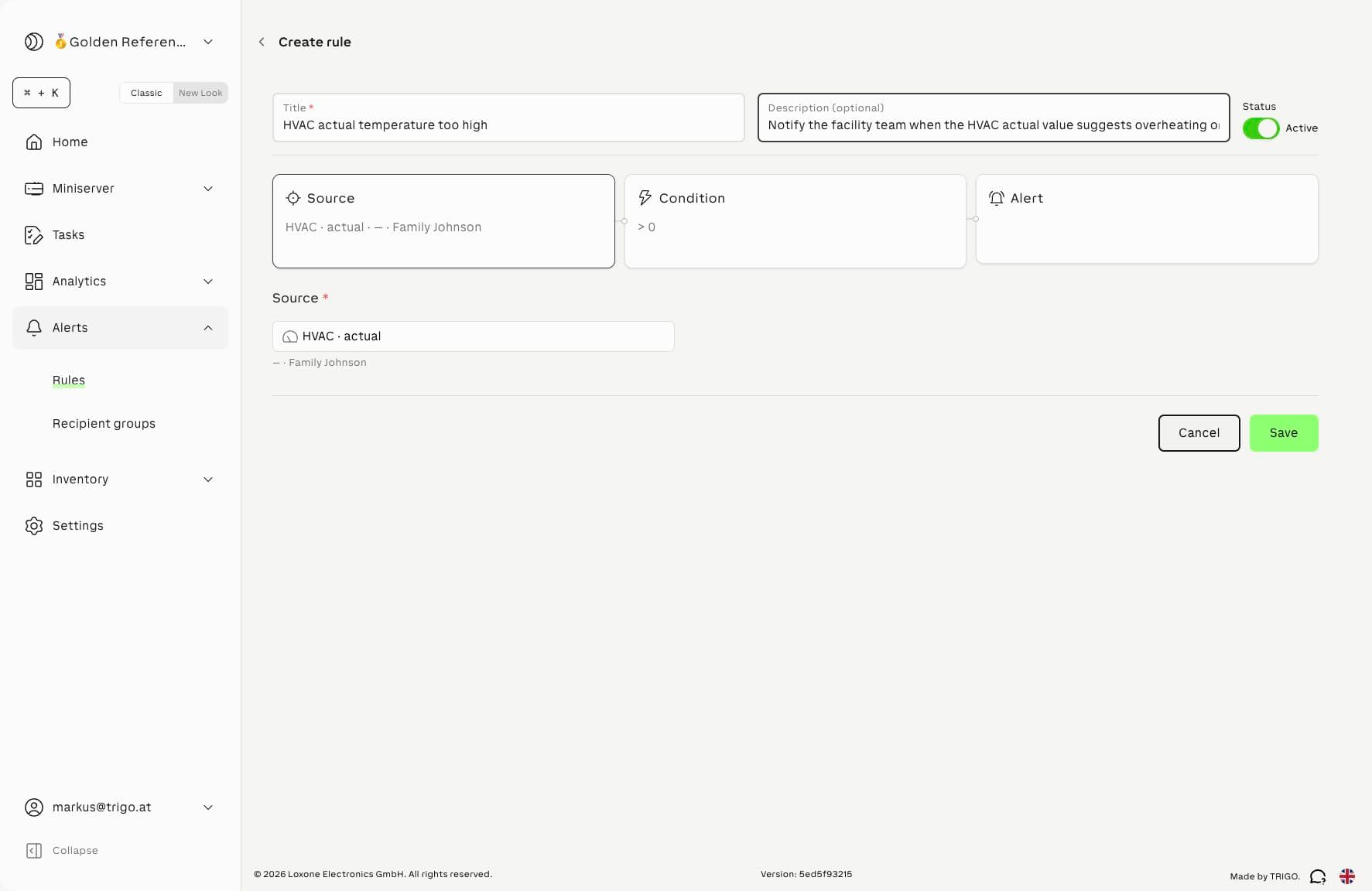
Use a single sensor when one specific value matters. Use a Function Block Set when the same rule should apply to a group of similar controls.
Function Block Set behavior
When a Function Block Set is used as the source, the rule matches as soon as any member of the set matches the condition.
Configure the Condition
- Open the Condition card.
- Select the condition type.
- Choose the operator when the condition uses a measured value.
- Enter the threshold value.
- Enter a duration for sustained threshold or no-data conditions.
| Condition | Use when | Required settings |
|---|---|---|
| Threshold | A value crossing a limit should alert immediately | Operator and threshold value |
| Sustained threshold | A value must stay out of range before alerting | Operator, threshold value, and duration |
| No data | A source stops sending expected telemetry | Timeout duration |
Available operators are >, >=, <, <=, =, and !=.
For the HVAC example, use Threshold, operator >, and value 27.
Choose durations from the source behavior
For no-data rules, set the timeout longer than the normal reporting interval. A heat meter that reports every 15 minutes should not alert after 5 minutes of silence.
Configure the Alert Channel
- Open the Alert card.
- Click Channel to add an alert channel.
- Select the Severity.
- Select Email or SMS.
- Add one or more recipients, recipient groups, or external contacts.
- Add another channel if the same rule needs another delivery method or severity.
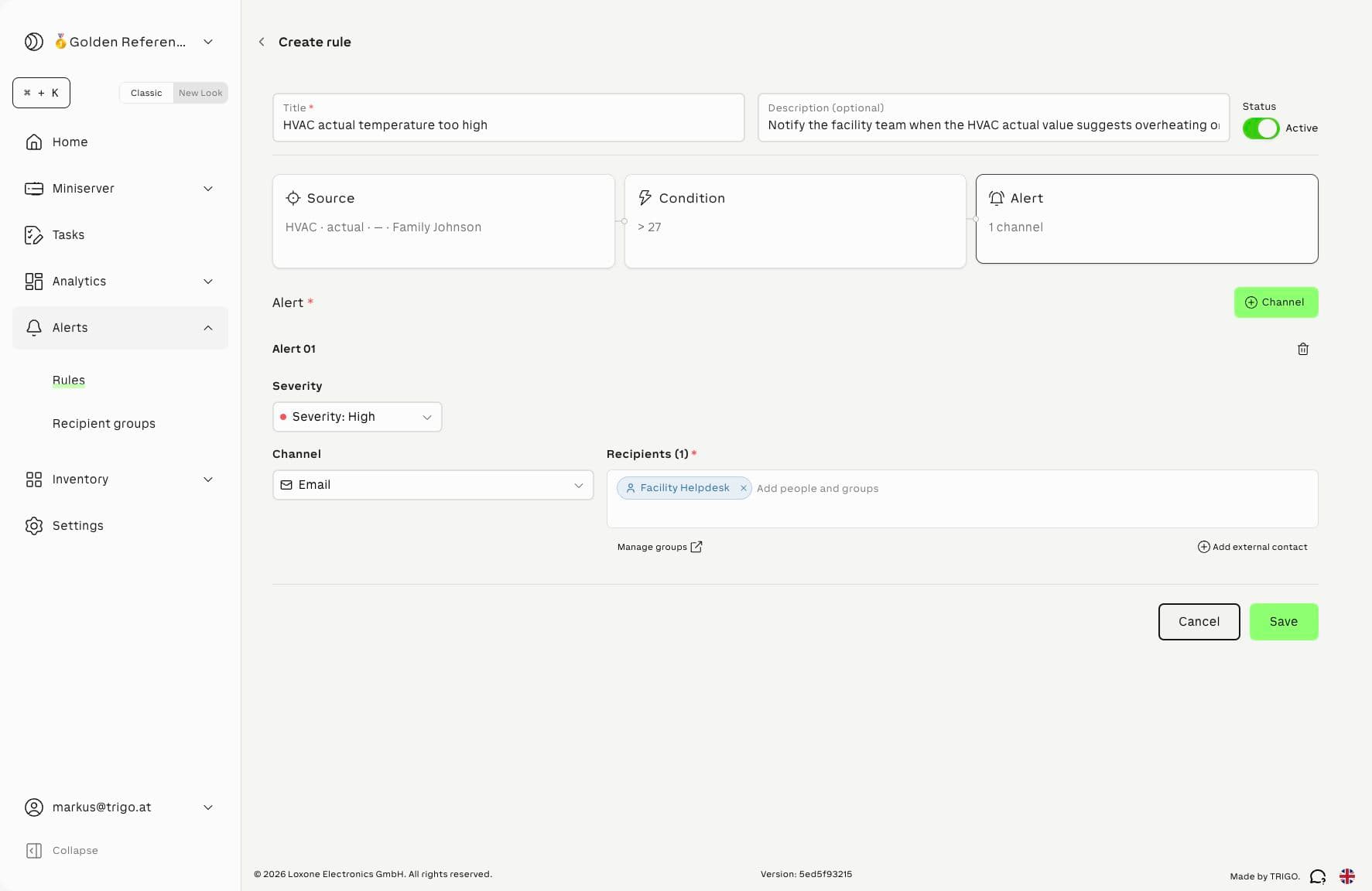
Use multiple channels when escalation should differ by delivery method. For example, send email to the facility team and SMS to the on-call technician for critical plant-room conditions.
SMS requires SMS Alert capacity
SMS channels require an active SMS Alert license and recipients with valid phone numbers. If the workspace does not have SMS Alert capacity, use an email channel or ask a workspace administrator to add the Exosphere Add-on Alert license under Settings → Subscription.
Add an External Contact
Use external contacts for people who are not workspace members, such as a service partner or facility helpdesk.
- In the Alert card, click Add external contact.
- Enter the contact Name.
- Enter an Email address for email alerts.
- Enter a Phone number for SMS alerts.
- Click Add.
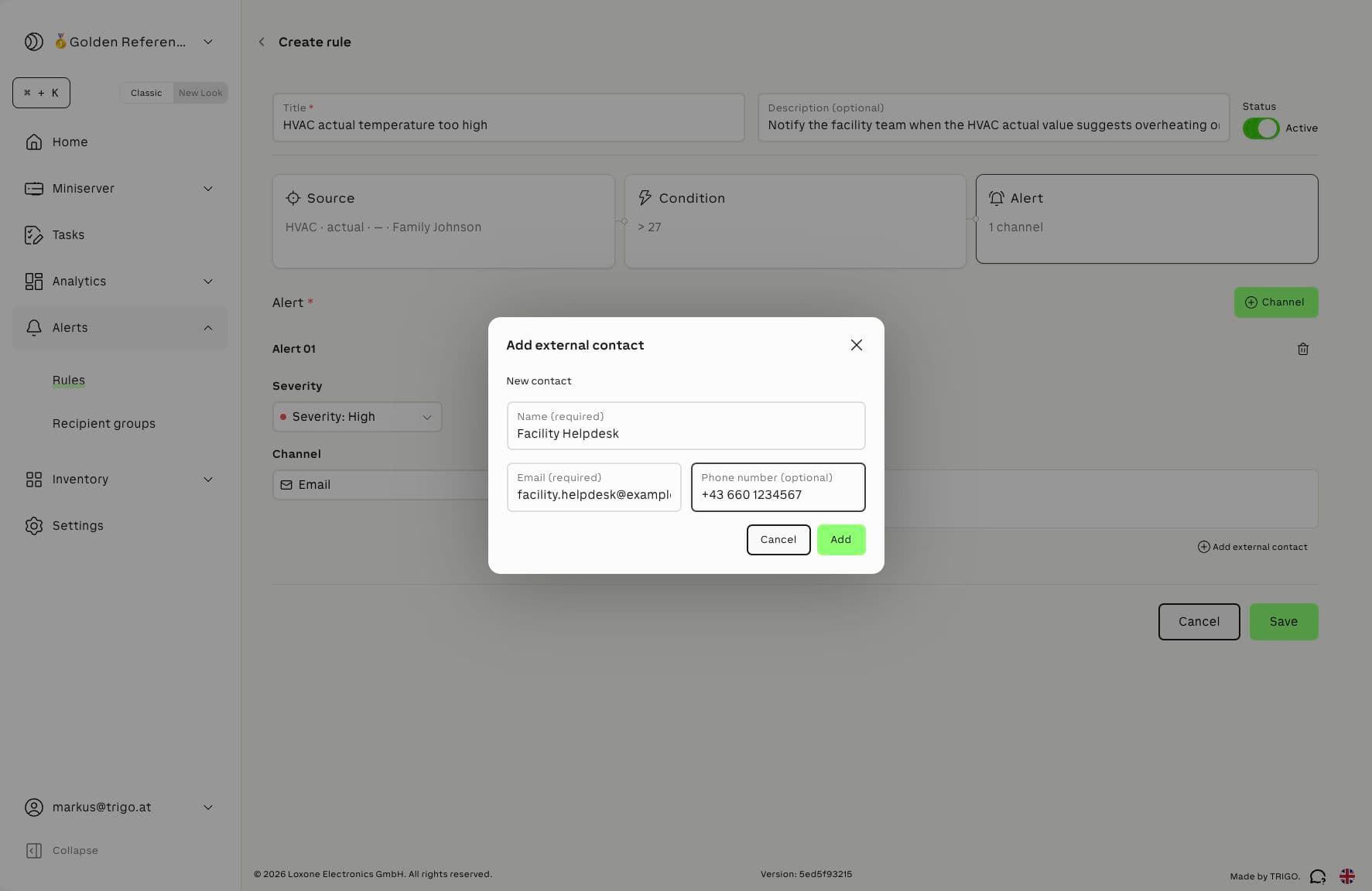
The contact is added to the current alert channel. If you need to reuse the same people across several rules, create a recipient group instead.
Save and Verify
- Review the Source, Condition, and Alert cards.
- Click Save.
- Return to Rules.
- Confirm the rule appears in the list with the expected status, severity, channel, and tags.
After saving, open the rule detail page to review the complete configuration.
Alternative Starting Points
You can also open the rule editor from an existing source context:
- Inventory → Function Blocks
- Inventory → Function Block Sets
- Charts
- Dashboards
The source is preselected when Exosphere can identify an eligible alert source. See Create Alerts from Existing Views.
Related Documentation
- Alerts Overview - Alert concepts and recommended workflow
- Create Alerts from Existing Views - Start with a preselected source
- Manage Recipient Groups - Create reusable alert recipients
- Alert Rule Examples - Realistic building automation scenarios
- Alert Reference - Condition, channel, severity, and status details
- Notification & Alert Troubleshooting - Resolve rule and delivery issues